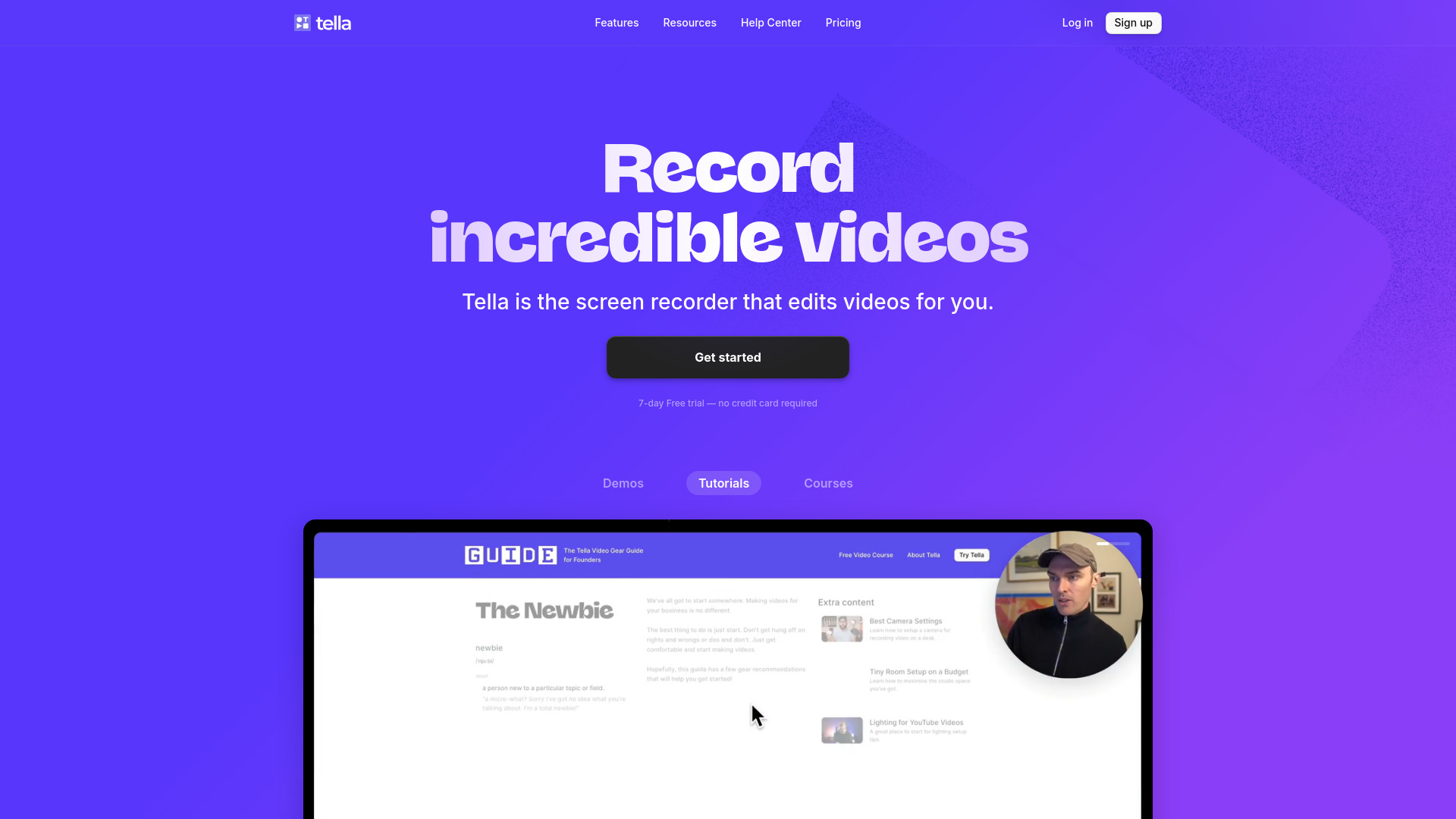
What Is Tella?
Tella is an AI screen recorder for Mac and Windows PCs that brings recording, editing, and publishing into one workspace. It’s designed for people who make product demos, software tutorials, online lessons, and other videos that explain what’s happening on screen. You can record your presentation in short clips, refer to speaker notes as you go, and use AI to trim filler words and long pauses afterward. Tella also generates a transcript you can edit to make cuts in the video. The workflow makes it easy to fix a single step in a walkthrough or update part of a lesson while keeping the clips you’ve already recorded.
How to Record and Edit a Video With Tella
Open Tella on your Mac, Windows PC, or in your browser. Outline your video as a series of short clips and add speaker notes for each one. For a product walkthrough, you might record an introduction, a demonstration of the main feature, and a closing summary. If you skip a step or a notification interrupts the recording, you can retake that clip and pick up where you left off. Once you have your footage, arrange the clips in the order that makes the most sense for viewers.
Use Tella’s AI editing tools to clean up pauses and filler words, then review the generated transcript. To cut a repeated explanation, find the passage and delete the corresponding text. Add a zoom when viewers need to see a small control or a specific part of the interface, and use backgrounds and transitions to give the clips a consistent look. When the video is ready, you can share it by link, embed it on a website or in an app, or download it in up to 4K where supported by your plan.
Key Features of Tella
- AI cleanup and transcript editing. Tella identifies filler words and extended pauses that can slow down a recording. The editable transcript lets you find an exact phrase and cut the matching footage, which is handy when you remember what you said but can’t recall where you said it.
- Clip-based recording with speaker notes. Capture each part of a presentation separately and keep your talking points in view as you record. You can reorder the clips as your outline evolves or replace one when a step needs to be shown again.
- Recording on Mac, Windows, and the web. Use Tella on a Mac or Windows PC, or start a recording in your browser. Browser access gives you another way to record when you switch computers.
- Link sharing, embeds, and video downloads. Send a link for a quick review, embed a hosted video in a help article or course page, or export a copy for use elsewhere. Supported exports include resolutions up to 4K.
- Custom backgrounds, transitions, and zoom. Use a consistent background across clips and add transitions where the scene changes. A zoom can direct attention to a setting, chart label, or button that would otherwise be easy to miss.
These features are especially helpful for videos you revise regularly. When a software release moves a setting or changes a workflow, you can replace the affected clip and leave the rest of the walkthrough intact.
Why Choose Tella for Screen Recording?
Tella fits projects where the screen is the main focus and the narration needs to be concise. Its transcript editor makes spoken content searchable and editable, so you can find a false start or an outdated instruction quickly. Automated cleanup handles routine cuts, leaving you time to check whether the steps follow a logical order and whether each action is visible on screen.
The same project can serve different audiences as it moves from review to publication. A product manager can send a share link to colleagues for feedback, make changes to individual clips, and embed the finished demo on a launch page. An instructor can keep a modular lesson up to date by replacing the clip that covers a changed feature. The workflow also suits team training, recorded presentations, and one-to-one feedback.
Practical Uses for Tella
Product teams can give each feature its own clip in a demo. If customer feedback shows that a setup step needs more context, the team can record a clearer explanation and move it earlier in the video. The same approach works for release walkthroughs, onboarding guides, and help center videos.
Educators and course creators can divide a lesson into short sections, using speaker notes to track the examples and key points they want to cover. Transcript editing helps tighten repeated explanations, and zoom effects make it easier for learners to follow actions inside a software interface. Once the lesson is ready, instructors can embed it on a course page or export a copy for their learning platform.
Sales and marketing teams can use Tella to record personalized demos, prospect follow-ups, and launch announcements. For a follow-up after a sales call, a rep might open with a short personalized introduction, then show the specific feature the prospect asked about. A share link gives the recipient a straightforward way to watch the walkthrough and pass it along to colleagues.