Text&ampWriting

Veo 3 Free Video Generator

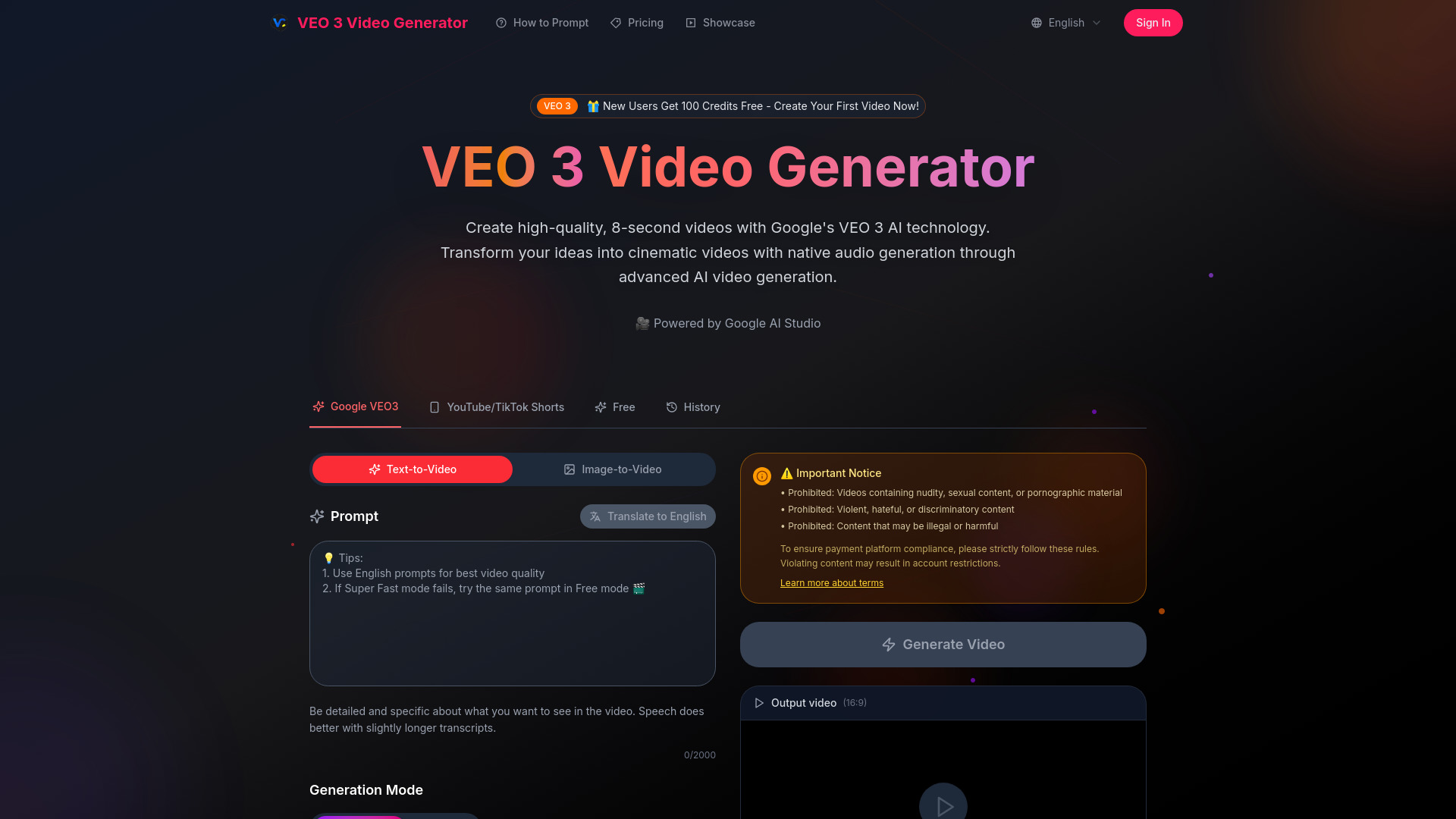
Veo 3 Free Video Generator turns text or images into 8-second videos with native audio, realistic physics, and professional lighting.

Veo 3 Free Video Generator website preview

What Is Veo 3 Free Video Generator?

Veo 3 free video generator brings AI-powered filmmaking to creators who want to turn an idea into a short video with sound. Using Google's Veo 3 technology, supported platforms can transform written descriptions—and, where available, reference images—into cinematic clips with movement, atmosphere, and generated audio. Instead of filming a scene and assembling its soundtrack separately, you can describe the experience you want to create and let the AI produce an initial version.

A key attraction is the ability to generate audio alongside the visuals. A scene can include environmental sounds, effects tied to on-screen action, and spoken dialogue, making the result feel more complete than a silent animation. Many Veo 3 workflows focus on short clips, commonly around eight seconds, although duration and available controls depend on the service. For anyone searching for a Veo 3 free video generator online, it is important to check the provider's current access options: free credits, generation limits, export quality, and paid features can vary.

How to Use Veo 3 Free Video Generator

Start by opening a platform that offers Veo 3 access and checking its available generation modes. With text-to-video, you describe the subject, setting, action, and sound you want. If image-to-video is supported, you can upload a reference image and explain how the scene should move. A clear description gives the model useful direction without requiring camera equipment, animation software, or advanced editing skills.

Next, select any available settings, such as aspect ratio or generation quality, and submit your prompt. The platform then processes the request and creates a clip for review. Although AI video tools can shorten production time considerably, results are not guaranteed within seconds; processing speed depends on the service, selected settings, and demand. Watch the preview, listen to the audio, and refine your instructions if the movement, composition, or dialogue needs adjustment. Download options, resolution, and watermark policies depend on your plan.

For stronger results, organize your prompt around one clear moment. Describe who or what appears, what happens, how the camera moves, and which sounds should be heard. For example: “A cyclist rides through a quiet seaside street at sunrise. The camera follows from behind as gulls call overhead and bicycle tires roll across the pavement.” Focused prompts make it easier to evaluate the output and improve one detail at a time.

Key Features of Veo 3 Free Video Generator

  • Text-to-Video Creation: Turn a written concept into a short AI-generated scene. Specify the subject, location, movement, and visual style to guide the result, whether you are planning a realistic product shot or an imaginative storytelling sequence.
  • Generated Audio: Create video with sound effects, background ambience, and dialogue where supported. Describing audio in the prompt helps establish the intended mood, although synchronization, speech clarity, and lip movements should be checked before publishing.
  • Cinematic Visual Direction: Request lighting styles, shot types, and camera movements to shape the appearance of a clip. Instructions such as a slow tracking shot, soft window light, or a close-up can help communicate a specific creative direction.
  • Image-Based Animation: On platforms that support image-to-video, use an existing visual as a starting point. Reference images can help guide a scene's appearance while your prompt describes the desired motion and atmosphere.
  • Accessible Prompt-Based Workflow: Explain your idea in everyday language rather than building every frame manually. This approach allows beginners to explore video creation and gives experienced teams a quick way to test visual concepts.

Together, these capabilities can reduce the effort involved in producing early drafts, social media assets, and creative experiments. They do not remove the need for editorial judgment: reviewing visual consistency, audio quality, and brand accuracy remains an important part of the workflow.

Why Choose Veo 3 Free Video Generator?

A Veo 3 free video generator is worth exploring if you want to test AI video creation before committing to a paid production workflow. Where free access or trial credits are available, you can experiment with prompts, compare styles, and assess whether the results suit your needs. This makes it easier to evaluate the technology using your own ideas rather than relying only on demonstration clips.

The combination of video and generated sound is particularly useful for scenes where atmosphere matters. A rain-soaked street, a bustling café, or a short character exchange benefits from audio that supports the action. Creating these elements within one generation workflow can simplify early production, even if the final clip still needs trimming, sound adjustments, captions, or other finishing work.

For businesses and professional creators, the best option depends on more than image quality. Compare usage allowances, generation speed, export settings, data policies, and commercial terms before choosing a provider. Do not assume that “free” means unlimited access or that a paid plan automatically includes watermark-free exports and unrestricted usage. Checking these details helps you select a service that fits your budget and intended publishing channels.

Use Cases and Applications

Social media creators can use Veo 3-generated clips to develop opening hooks, atmospheric transitions, and short visual stories for TikTok, Instagram Reels, and YouTube Shorts. A brief AI-generated scene can stand alone or become part of a longer edit. Creators should check the available aspect ratios and leave room for captions, interface overlays, and other platform-specific elements.

Marketing teams can explore campaign concepts, draft promotional scenes, and test different visual approaches before arranging a shoot. For example, a brand could compare several settings for a product-focused video or preview how a particular lighting style might feel. When exact packaging, logos, or product features matter, review the output carefully: generated imagery may alter small details or introduce inconsistencies.

Educators and trainers can use short clips to illustrate settings, introduce scenarios, or support a lesson with visual context. Filmmakers, designers, and agencies can also use the technology for moving storyboards, mood studies, and early creative presentations. Where image input is available, static artwork or approved reference material can provide a starting point for animation experiments. In each case, the strongest application is one that pairs fast generation with thoughtful human review.

Product source: Veo 3 Free Video Generator official website. Check the provider for current plans, limits and availability.

FAQ

Veo 3 Free Video Generator questions and answers

Product context and practical checks for evaluating Veo 3 Free Video Generator.

What is Veo 3 Free Video Generator used for?

Veo 3 Free Video Generator turns text or images into 8-second videos with native audio, realistic physics, and professional lighting.

How do I get started with Veo 3 Free Video Generator?

Start by opening a platform that offers Veo 3 access and checking its available generation modes. With text-to-video, you describe the subject, setting, action, and sound you want. If image-to-video is supported, you can upload a reference image and explain how the scene should move. A clear description gives the model useful direction without requiring camera equipment, animation software, or advanced editing skills.Next, select any available settings, such as aspect ratio or generation quality, and submit your prompt. The platform then processes the request and creates a clip for review. Although AI video tools can shorten production time considerably, results are not guaranteed within seconds; processing speed depends on the service, selected settings, and demand. Watch the preview, listen to the audio, and refine your instructions if the movement, composition, or dialogue needs adjustment. Download options, resolution, and watermark policies depend on your plan.For stronger results, organize your prompt around one clear moment. Describe who or what appears, what happens, how the camera moves, and which sounds should be heard. For example: “A cyclist rides through a quiet seaside street at sunrise. The camera follows from behind as gulls call overhead and bicycle tires roll across the pavement.” Focused prompts make it easier to evaluate the output and improve one detail at a time.

Which capabilities are described for Veo 3 Free Video Generator?

Text-to-Video Creation: Turn a written concept into a short AI-generated scene. Specify the subject, location, movement, and visual style to guide the result, whether you are planning a realistic product shot or an imaginative storytelling sequence. Generated Audio: Create video with sound effects, background ambience, and dialogue where supported. Describing audio in the prompt helps establish the intended mood, although synchronization, speech clarity, and lip movements should be checked before publishing. Cinematic Visual Direction: Request lighting styles, shot types, and camera movements to shape the appearance of a clip. Instructions such as a slow tracking shot, soft window light, or a close-up can help communicate a specific creative direction. Image-Based Animation: On platforms that support image-to-video, use an existing visual as a starting point. Reference images can help guide a scene's appearance while your prompt describes the desired motion and atmosphere. Accessible Prompt-Based Workflow: Explain your idea in everyday language rather than building every frame manually. This approach allows beginners to explore video creation and gives experienced teams a quick way to test visual concepts. Together, these capabilities can reduce the effort involved in producing early drafts, social media assets, and creative experiments. They do not remove the need for editorial judgment: reviewing visual consistency, audio quality, and brand accuracy remains an important part of the workflow.

What projects can I evaluate Veo 3 Free Video Generator for?

Social media creators can use Veo 3-generated clips to develop opening hooks, atmospheric transitions, and short visual stories for TikTok, Instagram Reels, and YouTube Shorts. A brief AI-generated scene can stand alone or become part of a longer edit. Creators should check the available aspect ratios and leave room for captions, interface overlays, and other platform-specific elements.Marketing teams can explore campaign concepts, draft promotional scenes, and test different visual approaches before arranging a shoot. For example, a brand could compare several settings for a product-focused video or preview how a particular lighting style might feel. When exact packaging, logos, or product features matter, review the output carefully: generated imagery may alter small details or introduce inconsistencies.Educators and trainers can use short clips to illustrate settings, introduce scenarios, or support a lesson with visual context. Filmmakers, designers, and agencies can also use the technology for moving storyboards, mood studies, and early creative presentations. Where image input is available, static artwork or approved reference material can provide a starting point for animation experiments. In each case, the strongest application is one that pairs fast generation with thoughtful human review.

How does Veo 3 Free Video Generator handle text-to-video creation?

Text-to-Video Creation: Turn a written concept into a short AI-generated scene. Specify the subject, location, movement, and visual style to guide the result, whether you are planning a realistic product shot or an imaginative storytelling sequence.

How does Veo 3 Free Video Generator handle generated audio?

Generated Audio: Create video with sound effects, background ambience, and dialogue where supported. Describing audio in the prompt helps establish the intended mood, although synchronization, speech clarity, and lip movements should be checked before publishing.

What should I compare before choosing a Veo 3 Free Video Generator plan?

Check Veo 3 Free Video Generator’s current pricing page for included usage, renewal terms and any credit charges. Compare the cost of a usable result, including retries, rather than assuming that account registration includes free usage.

What inputs should I prepare for a Veo 3 Free Video Generator trial?

Compare text prompts, reference frames, source footage and audio support. Check duration, aspect ratio and whether the tool lets you keep a subject consistent between shots.

How can I check the quality of a Veo 3 Free Video Generator result?

Watch the entire clip for motion errors, distorted objects, changing identities, lip-sync problems and abrupt transitions. Inspect the downloaded file as well as the preview.

Where is the official Veo 3 Free Video Generator website?

The website linked from this profile is https://www-veo.com. Use the provider’s own documentation, account area and support channels to confirm current product details.

Visit Veo 3 Free Video Generator