Text&ampWriting

ImgEnhancer

Transform images with ImgEnhancer AI. Upscale resolution, enhance quality, and create visuals. Try professional-grade enhancement free today!

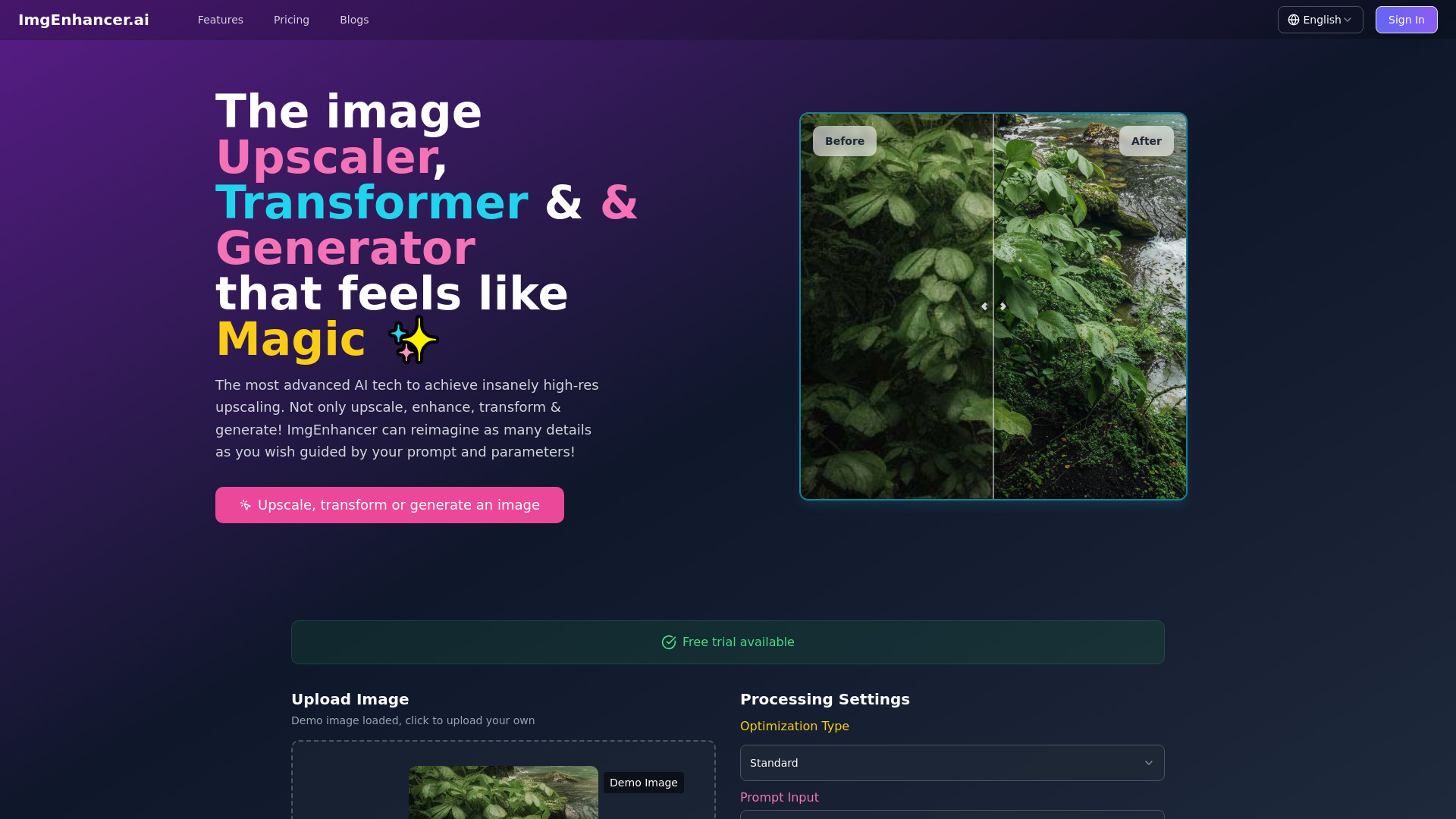
ImgEnhancer website preview

What is ImgEnhancer?

ImgEnhancer is an AI image upscaler and picture quality enhancer that helps photographers, designers, and digital artists improve the resolution and appearance of their visuals. The platform combines image enlargement with prompt-based enhancement, allowing users to influence how textures, surfaces, and fine details appear in the finished result. Rather than relying only on conventional resizing, ImgEnhancer uses AI to interpret visual content and generate additional detail. Its adjustable settings support both subtle refinements and more expressive transformations, making it useful for portraits, illustrations, AI-generated artwork, and other creative projects that require larger, clearer images.

How to Use ImgEnhancer

Start by uploading an image or choosing an available demonstration image to explore the enhancement process. Enter a text prompt describing the appearance or details you want the AI to emphasize. Then adjust the Creativity, HDR, and Resemblance controls to shape the output. Creativity influences how freely the AI introduces new visual information, while HDR affects the treatment of contrast and tonal detail. Resemblance helps balance creative changes with fidelity to the source. Together, these settings let you guide the enhancement according to the needs of each image.

For a restrained edit, begin with settings that prioritize the original composition and recognizable features. If you want a more imaginative result, gradually increase creative freedom and refine your prompt. Review important areas such as faces, lettering, edges, and repeating patterns before deciding which version to use. Photographers may prefer a lighter approach to preserve a subject's appearance, while illustrators and AI artists may welcome additional texture. Testing a few combinations helps establish an effective balance between image quality, visual consistency, and creative interpretation.

Key Features of ImgEnhancer

  • AI Image Upscaling: Increase image resolution with AI-assisted reconstruction that interprets shapes, textures, and visual patterns. This approach can produce a more detailed appearance than basic enlargement, although the result depends on the source image and the enhancement settings you choose.
  • Text-Prompt Enhancement: Use written descriptions to guide the treatment of an image. Prompts help communicate the textures, stylistic qualities, or visual characteristics you want to emphasize, giving you another way to influence the result alongside the platform's adjustment controls.
  • Creativity, HDR, and Resemblance Settings: Customize the relationship between added detail, tonal intensity, and similarity to the original. These controls allow users to explore different enhancement strengths and adapt the output to projects that call for either faithful refinement or greater artistic freedom.
  • Flexible Image Transformation: Work with photographs, digital illustrations, and AI-generated visuals in a single enhancement workflow. ImgEnhancer supports resolution improvements and creative reinterpretation, helping users prepare images for further editing, presentation, or evaluation for larger display formats.

These features bring automated processing and creative direction into the same workflow. Users can explore enhancements without manually rebuilding every texture, then select and refine the versions that best suit their intended use.

Why Choose ImgEnhancer?

ImgEnhancer offers a practical combination of image upscaling and adjustable AI enhancement. Its prompt-based workflow gives users a way to describe their goals, while the visual controls help tune how closely the result follows the original. This flexibility is useful when different projects require different levels of intervention. A portrait may need careful preservation of facial features, whereas a fantasy illustration may benefit from richer surfaces and more elaborate detail. The ability to adjust those priorities makes the platform relevant to a range of creative tasks.

Browser-based access also makes it convenient to experiment without setting up a complex local editing environment. Beginners can start with straightforward adjustments, while experienced creatives can explore how prompts and settings interact. For teams handling varied visual assets, ImgEnhancer can serve as an enhancement step before final retouching or production. Its value lies in helping users generate and compare improved versions efficiently, with human review remaining essential when accurate likeness, realistic texture, or specific delivery requirements matter.

Use Cases and Applications

Photographers can use ImgEnhancer to explore higher-resolution versions of portraits and other images, checking skin texture, hair, and fine edges before preparing final deliverables. Digital artists can enlarge illustrations and experiment with added surface detail while preserving the overall composition. Creators working with AI-generated images can refine promising outputs and assess them at larger sizes. Graphic designers and studios may use the platform when preparing visuals for presentations, digital layouts, or potential print applications. Across these workflows, the appropriate settings depend on the source material and intended output. Images intended for large-format production should still be checked for dimensions, artifacts, and print suitability.

Product source: ImgEnhancer official website. Check the provider for current plans, limits and availability.

FAQ

ImgEnhancer questions and answers

Product context and practical checks for evaluating ImgEnhancer.

What is ImgEnhancer used for?

Transform images with ImgEnhancer AI. Upscale resolution, enhance quality, and create visuals. Try professional-grade enhancement free today!

How do I get started with ImgEnhancer?

Start by uploading an image or choosing an available demonstration image to explore the enhancement process. Enter a text prompt describing the appearance or details you want the AI to emphasize. Then adjust the Creativity, HDR, and Resemblance controls to shape the output. Creativity influences how freely the AI introduces new visual information, while HDR affects the treatment of contrast and tonal detail. Resemblance helps balance creative changes with fidelity to the source. Together, these settings let you guide the enhancement according to the needs of each image.For a restrained edit, begin with settings that prioritize the original composition and recognizable features. If you want a more imaginative result, gradually increase creative freedom and refine your prompt. Review important areas such as faces, lettering, edges, and repeating patterns before deciding which version to use. Photographers may prefer a lighter approach to preserve a subject's appearance, while illustrators and AI artists may welcome additional texture. Testing a few combinations helps establish an effective balance between image quality, visual consistency, and creative interpretation.

Which capabilities are described for ImgEnhancer?

AI Image Upscaling: Increase image resolution with AI-assisted reconstruction that interprets shapes, textures, and visual patterns. This approach can produce a more detailed appearance than basic enlargement, although the result depends on the source image and the enhancement settings you choose. Text-Prompt Enhancement: Use written descriptions to guide the treatment of an image. Prompts help communicate the textures, stylistic qualities, or visual characteristics you want to emphasize, giving you another way to influence the result alongside the platform's adjustment controls. Creativity, HDR, and Resemblance Settings: Customize the relationship between added detail, tonal intensity, and similarity to the original. These controls allow users to explore different enhancement strengths and adapt the output to projects that call for either faithful refinement or greater artistic freedom. Flexible Image Transformation: Work with photographs, digital illustrations, and AI-generated visuals in a single enhancement workflow. ImgEnhancer supports resolution improvements and creative reinterpretation, helping users prepare images for further editing, presentation, or evaluation for larger display formats. These features bring automated processing and creative direction into the same workflow. Users can explore enhancements without manually rebuilding every texture, then select and refine the versions that best suit their intended use.

What projects can I evaluate ImgEnhancer for?

Photographers can use ImgEnhancer to explore higher-resolution versions of portraits and other images, checking skin texture, hair, and fine edges before preparing final deliverables. Digital artists can enlarge illustrations and experiment with added surface detail while preserving the overall composition. Creators working with AI-generated images can refine promising outputs and assess them at larger sizes. Graphic designers and studios may use the platform when preparing visuals for presentations, digital layouts, or potential print applications. Across these workflows, the appropriate settings depend on the source material and intended output. Images intended for large-format production should still be checked for dimensions, artifacts, and print suitability.

How does ImgEnhancer handle ai image upscaling?

AI Image Upscaling: Increase image resolution with AI-assisted reconstruction that interprets shapes, textures, and visual patterns. This approach can produce a more detailed appearance than basic enlargement, although the result depends on the source image and the enhancement settings you choose.

How does ImgEnhancer handle text-prompt enhancement?

Text-Prompt Enhancement: Use written descriptions to guide the treatment of an image. Prompts help communicate the textures, stylistic qualities, or visual characteristics you want to emphasize, giving you another way to influence the result alongside the platform's adjustment controls.

What should I compare before choosing a ImgEnhancer plan?

Check ImgEnhancer’s current pricing page for included usage, renewal terms and any credit charges. Compare the cost of a usable result, including retries, rather than assuming that account registration includes free usage.

What inputs should I prepare for a ImgEnhancer trial?

Look for text prompts, image references, masks or sketches as appropriate. Compare composition control, supported upload types and the ability to revise a selected area.

How can I check the quality of a ImgEnhancer result?

Inspect text, hands, edges, reflections and repeated objects at full size. Check that important product or brand details survive editing.

Where is the official ImgEnhancer website?

The website linked from this profile is https://imgenhancer.ai. Use the provider’s own documentation, account area and support channels to confirm current product details.

Visit ImgEnhancer