Text&ampWriting

Glotera AI

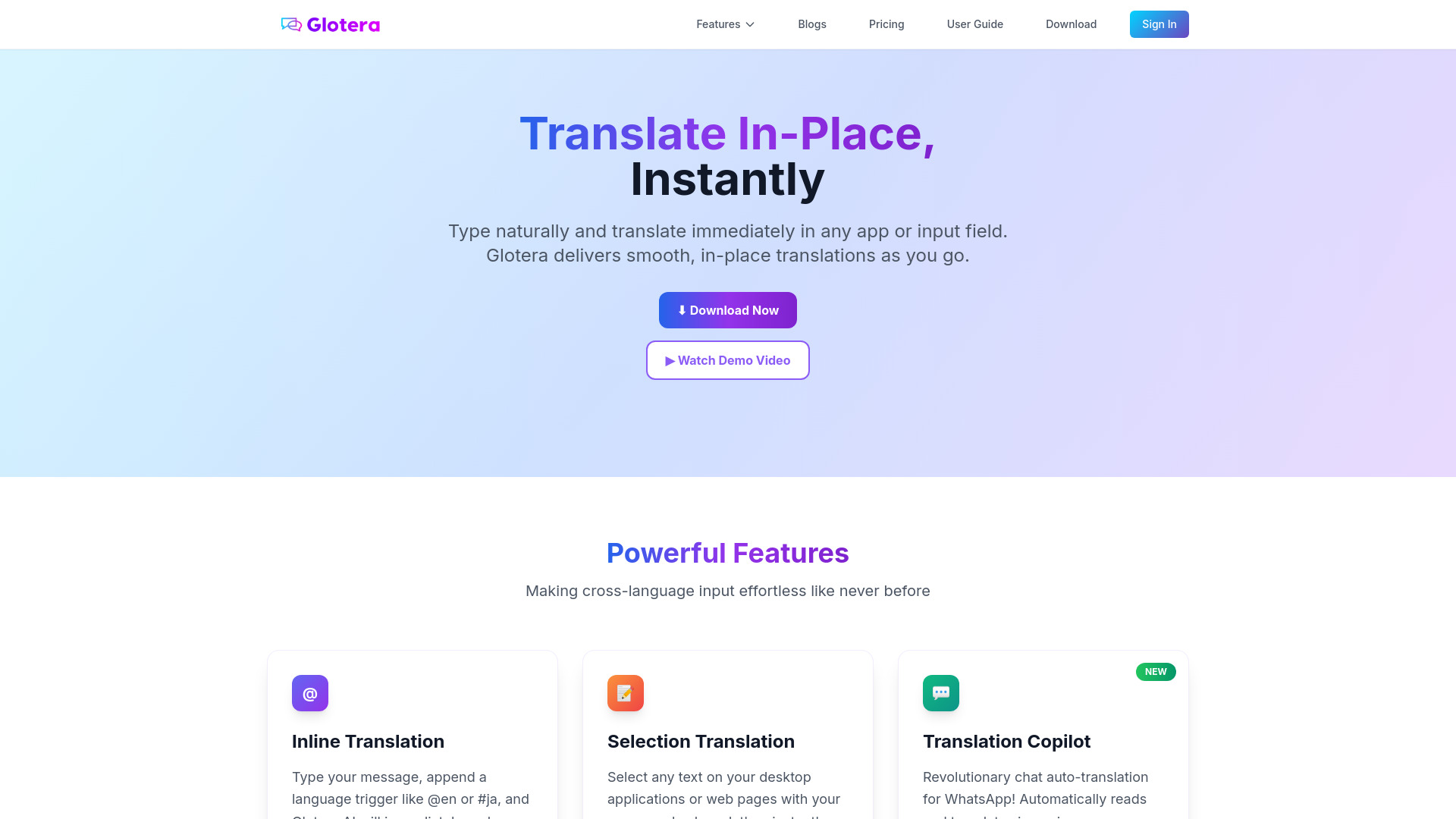
Translate instantly in any macOS app with Glotera AI. Type @en or #ja to translate in place across 100+ languages—no copy-paste

Glotera AI website preview

What is Glotera AI?

Glotera AI is an AI translation assistant for macOS that lets you translate text directly inside the apps you use every day. With support for more than 100 languages, it helps you write emails, exchange messages, and read international content without repeatedly moving text between a translator and your workspace. Its central feature is in-place translation: write your message, add a language trigger, and convert the text where it already appears. Whether you are contacting an overseas client in Gmail or joining a conversation on Discord, Glotera AI makes multilingual communication part of your regular writing process.

The app brings together inline translation, selected-text translation, and messaging assistance. These tools support different parts of a multilingual workflow, from drafting a reply in another language to understanding a passage on a website. Customizable shortcuts give frequent users a convenient way to access their preferred languages.

How to Use Glotera AI

To translate while writing, enter your text in a supported input field and finish it with a target-language trigger. For example, use @en to request English or #ja to request Japanese. Press Enter or double-tap the spacebar to activate the translation. Glotera AI then replaces the original text with the translated version in the same field, allowing you to review it before continuing your message or sending it.

For content you want to read, highlight a passage and use Selection Translation to view its meaning in another language. A translation overlay lets you consult the result while keeping the original material nearby. This approach is useful when browsing foreign-language websites, reviewing documents, or reading selectable text in PDFs.

You can adjust the workflow in Settings. Assign shorter triggers to languages you use often, such as replacing @zh-tw with @tw, or disable Enter activation if it interferes with your typing habits. Translation Copilot adds assistance in supported messaging apps, helping you handle multilingual conversations within your existing chat workflow.

Key Features of Glotera AI

  • In-Place AI Translation: Translate text directly in the field where you are writing. Add a language trigger and activate the command to replace your draft with a translation, reducing the steps involved in preparing emails, messages, and other everyday content.
  • Support for 100+ Languages: Communicate with people across a broad range of languages using one macOS assistant. Language triggers make it easy to choose a destination language and switch between different audiences throughout the day.
  • Selection Translation for Reading: Highlight text to access a translation while viewing the source material. The feature supports reading tasks in editable and read-only contexts, including web pages, documents, and PDFs with selectable text.
  • Translation Copilot for Messaging: Get translation assistance during conversations in supported chat apps such as WhatsApp. Keeping translation close to the conversation helps you understand incoming messages and prepare replies with fewer interruptions.
  • Personalized Translation Controls: Adapt language shortcuts and activation settings to your preferences. Shorter triggers and a choice of activation methods help make repeated translation tasks easier to manage.

Together, these features cover writing, reading, and conversation. You can translate a draft, check an unfamiliar passage, and respond to a message using a consistent set of tools across your Mac.

Why Choose Glotera AI?

Glotera AI is useful for Mac users who regularly work in more than one language and want translation available within their usual applications. Moving between a writing app and a separate translation service can interrupt concentration, especially when handling many short messages. In-place translation reduces that movement by bringing the translation step into the text field itself.

Its combination of writing and reading tools also suits tasks that involve both understanding information and responding to it. For example, you can translate part of an international client's message, draft a response in your preferred language, and convert that response into the client's language. The process keeps the relevant text within reach as you work.

Customizable triggers offer additional convenience for people who repeatedly use the same language pairs. Freelancers, students, customer-facing professionals, and distributed teams can adapt these shortcuts to their daily routines. As with any AI translation tool, reviewing names, specialized terms, and sensitive wording before sharing a translation helps ensure the final message communicates your intended meaning.

Use Cases and Applications

For international email, Glotera AI helps professionals prepare replies without leaving their compose window. A freelancer can write a project update in their first language, add a trigger such as @en or @de, and review the translated draft before sending it to a client. This is particularly convenient for routine correspondence, scheduling, and follow-up messages.

For research and content planning, Selection Translation helps marketers and creators understand material published in other languages. Translating relevant passages from websites or social posts can support topic research, competitor reviews, and exploration of regional conversations while keeping the source content accessible.

For distributed teams, translation within messaging workflows helps colleagues follow discussions and prepare replies across languages. People working in apps such as Discord or WhatsApp can use Glotera AI's writing tools and, where supported, Translation Copilot to reduce interruptions during ongoing conversations.

For education, students and researchers can translate selected passages from study materials, articles, and documents. Quick access to a translation can help clarify unfamiliar wording and support further reading. It is especially useful as a reading aid when exploring sources beyond a learner's strongest language.

Product source: Glotera AI official website. Check the provider for current plans, limits and availability.

FAQ

Glotera AI questions and answers

Product context and practical checks for evaluating Glotera AI.

What is Glotera AI used for?

Translate instantly in any macOS app with Glotera AI. Type @en or #ja to translate in place across 100+ languages—no copy-paste

How do I get started with Glotera AI?

To translate while writing, enter your text in a supported input field and finish it with a target-language trigger. For example, use @en to request English or #ja to request Japanese. Press Enter or double-tap the spacebar to activate the translation. Glotera AI then replaces the original text with the translated version in the same field, allowing you to review it before continuing your message or sending it.For content you want to read, highlight a passage and use Selection Translation to view its meaning in another language. A translation overlay lets you consult the result while keeping the original material nearby. This approach is useful when browsing foreign-language websites, reviewing documents, or reading selectable text in PDFs.You can adjust the workflow in Settings. Assign shorter triggers to languages you use often, such as replacing @zh-tw with @tw, or disable Enter activation if it interferes with your typing habits. Translation Copilot adds assistance in supported messaging apps, helping you handle multilingual conversations within your existing chat workflow.

Which capabilities are described for Glotera AI?

In-Place AI Translation: Translate text directly in the field where you are writing. Add a language trigger and activate the command to replace your draft with a translation, reducing the steps involved in preparing emails, messages, and other everyday content. Support for 100+ Languages: Communicate with people across a broad range of languages using one macOS assistant. Language triggers make it easy to choose a destination language and switch between different audiences throughout the day. Selection Translation for Reading: Highlight text to access a translation while viewing the source material. The feature supports reading tasks in editable and read-only contexts, including web pages, documents, and PDFs with selectable text. Translation Copilot for Messaging: Get translation assistance during conversations in supported chat apps such as WhatsApp. Keeping translation close to the conversation helps you understand incoming messages and prepare replies with fewer interruptions. Personalized Translation Controls: Adapt language shortcuts and activation settings to your preferences. Shorter triggers and a choice of activation methods help make repeated translation tasks easier to manage. Together, these features cover writing, reading, and conversation. You can translate a draft, check an unfamiliar passage, and respond to a message using a consistent set of tools across your Mac.

What projects can I evaluate Glotera AI for?

For international email, Glotera AI helps professionals prepare replies without leaving their compose window. A freelancer can write a project update in their first language, add a trigger such as @en or @de, and review the translated draft before sending it to a client. This is particularly convenient for routine correspondence, scheduling, and follow-up messages.For research and content planning, Selection Translation helps marketers and creators understand material published in other languages. Translating relevant passages from websites or social posts can support topic research, competitor reviews, and exploration of regional conversations while keeping the source content accessible.For distributed teams, translation within messaging workflows helps colleagues follow discussions and prepare replies across languages. People working in apps such as Discord or WhatsApp can use Glotera AI's writing tools and, where supported, Translation Copilot to reduce interruptions during ongoing conversations.For education, students and researchers can translate selected passages from study materials, articles, and documents. Quick access to a translation can help clarify unfamiliar wording and support further reading. It is especially useful as a reading aid when exploring sources beyond a learner's strongest language.

How does Glotera AI handle in-place ai translation?

In-Place AI Translation: Translate text directly in the field where you are writing. Add a language trigger and activate the command to replace your draft with a translation, reducing the steps involved in preparing emails, messages, and other everyday content.

How does Glotera AI handle support for 100+ languages?

Support for 100+ Languages: Communicate with people across a broad range of languages using one macOS assistant. Language triggers make it easy to choose a destination language and switch between different audiences throughout the day.

What should I compare before choosing a Glotera AI plan?

Check Glotera AI’s current pricing page for included usage, renewal terms and any credit charges. Compare the cost of a usable result, including retries, rather than assuming that account registration includes free usage.

What inputs should I prepare for a Glotera AI trial?

Compare support for source documents, style instructions, outlines and length limits. Check whether citations link to real material rather than merely looking like references.

How can I check the quality of a Glotera AI result?

Verify names, dates, quotations and factual claims against the original sources. Edit tone, remove repetition and make sure the text answers the intended reader’s question.

Where is the official Glotera AI website?

The website linked from this profile is https://glotera.ai. Use the provider’s own documentation, account area and support channels to confirm current product details.

Visit Glotera AI