AI Product Description Generator

FileSpeech

FileSpeech: Convert files to crystal-clear speech with personalized voices. Multi-language support, offline capabilities, and top-notch synthesis engine included.

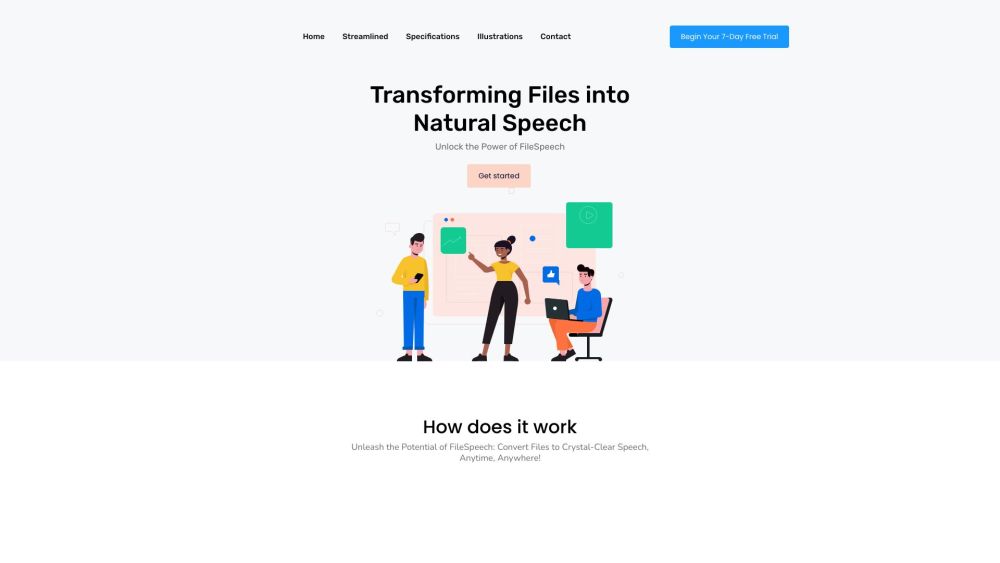
FileSpeech website preview

FileSpeech Website screenshot

What is FileSpeech?

FileSpeech is an innovative tool that transforms files into lifelike speech. It streamlines the file upload process, enabling users to customize the language and voice of the audio output. By utilizing cutting-edge algorithms, FileSpeech converts text into clear and natural-sounding speech that can be easily accessed and downloaded. The platform leverages a sophisticated speech synthesis engine and supports multiple languages for accurate and fluent speech. Additionally, it offers offline functionality and is designed for high performance and efficiency.

How to Use FileSpeech?

Using FileSpeech is straightforward. Start by uploading your chosen file through its user-friendly import feature. You can upload files from various sources, such as iCloud, website links, or by scanning physical documents with your device’s camera. After uploading, you can customize the language and voice for the speech output. FileSpeech provides a diverse range of natural voices to suit your preferences. Once you've made your selections, click the conversion button, and the platform's algorithms will convert the text into clear, natural speech. Upon completion, you can either download the audio file or listen to it within the app. FileSpeech offers an efficient way to interact with your content through audio.

FileSpeech's Core Features

Effortless file import from various sources (PDF, website links, scanned documents)

Personalized language and voice options for tailored speech output

Advanced algorithms for converting files into clear, natural speech

Easy access to converted speech via downloads or in-app playback

State-of-the-art speech synthesis engine for precise pronunciation and intonation

Support for multiple languages and varied linguistic structures

Offline mode for accessing and listening to speech without internet

High-performance and resource-efficient speech conversion

FileSpeech's Use Cases

Educational accessibility: Convert course materials into speech for students with visual impairments.

Content creation: Simplify content creation by converting scripts into speech, avoiding manual voiceovers.

Language learning: Enhance language learning with native-like pronunciation and listening practice.

Customer support: Improve accessibility and efficiency in customer support by converting articles and queries into speech.

  • FileSpeech Support Email & Customer Service Contact & Refund Information

    For customer service, contact FileSpeech support at: [email protected]. For more contact options, visit the contact us page(https://filespeech.com/#section-8)

  • FileSpeech Company

    FileSpeech Company address: Melbourne, Victoria, Australia 3000.

Product source: FileSpeech official website. Check the provider for current plans, limits and availability.

FAQ

FileSpeech questions and answers

Product context and practical checks for evaluating FileSpeech.

What is FileSpeech used for?

FileSpeech: Convert files to crystal-clear speech with personalized voices. Multi-language support, offline capabilities, and top-notch synthesis engine included.

How do I get started with FileSpeech?

Using FileSpeech is straightforward. Start by uploading your chosen file through its user-friendly import feature. You can upload files from various sources, such as iCloud, website links, or by scanning physical documents with your device’s camera. After uploading, you can customize the language and voice for the speech output. FileSpeech provides a diverse range of natural voices to suit your preferences. Once you've made your selections, click the conversion button, and the platform's algorithms will convert the text into clear, natural speech. Upon completion, you can either download the audio file or listen to it within the app. FileSpeech offers an efficient way to interact with your content through audio.

Which capabilities are described for FileSpeech?

Effortless file import from various sources (PDF, website links, scanned documents)Personalized language and voice options for tailored speech outputAdvanced algorithms for converting files into clear, natural speechEasy access to converted speech via downloads or in-app playbackState-of-the-art speech synthesis engine for precise pronunciation and intonationSupport for multiple languages and varied linguistic structuresOffline mode for accessing and listening to speech without internetHigh-performance and resource-efficient speech conversion

What projects can I evaluate FileSpeech for?

Educational accessibility: Convert course materials into speech for students with visual impairments.Content creation: Simplify content creation by converting scripts into speech, avoiding manual voiceovers.Language learning: Enhance language learning with native-like pronunciation and listening practice.Customer support: Improve accessibility and efficiency in customer support by converting articles and queries into speech. FileSpeech Support Email & Customer Service Contact & Refund Information For customer service, contact FileSpeech support at: [email protected]. For more contact options, visit the contact us page(https://filespeech.com/#section-8) FileSpeech Company FileSpeech Company address: Melbourne, Victoria, Australia 3000.

What should I compare before choosing a FileSpeech plan?

Check FileSpeech’s current pricing page for included usage, renewal terms and any credit charges. Compare the cost of a usable result, including retries, rather than assuming that account registration includes free usage.

What inputs should I prepare for a FileSpeech trial?

Compare recording length, file types, language support and speaker handling. For voice generation, check pronunciation controls and permission to use any reference voice.

How can I check the quality of a FileSpeech result?

Listen for mispronounced names, unnatural pauses, clipped words and noise. For transcripts, compare the text with the recording and correct speaker labels.

Which export options should I check in FileSpeech?

Check audio format, sample rate, separate tracks, captions and timestamp exports. Confirm that the result works in your editing or accessibility workflow.

What is a practical way to test FileSpeech against alternatives?

Use a short recording with names, numbers and more than one speaker, or a script with difficult pronunciation. Review the exported audio or transcript in full.

Where is the official FileSpeech website?

The website linked from this profile is https://filespeech.com. Use the provider’s own documentation, account area and support channels to confirm current product details.

Visit FileSpeech