Text to Image

ChatGPT Sidebar with GPT-4 Vision

ChatGPT Sidebar with GPT-4 Vision: Your AI-powered assistant for browsing, real-time analysis, and smarter insights. Boost productivity effortlessly!

ChatGPT Sidebar with GPT-4 Vision website preview

ChatGPT Sidebar with GPT-4 Vision & Image & Gemini by AITOPIA - Chrome Extension Website screenshot

ChatGPT Sidebar with GPT-4 Vision & Image & Gemini by AITOPIA: AI for Browsing & Enhanced Analysis

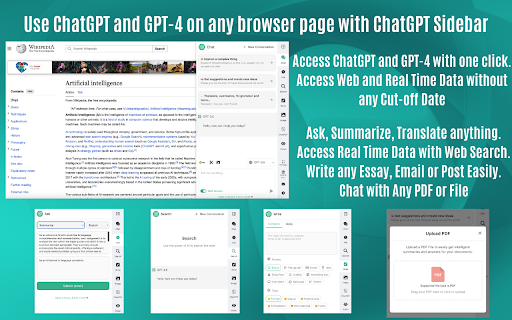
The ChatGPT Sidebar Chrome extension combines advanced AI tools like GPT-3.5, GPT-4 Vision, and Gemini by AITOPIA to streamline tasks such as browsing, file analysis, and content generation. It empowers users by offering intuitive assistance in understanding and processing web pages, PDFs, and images, making it an all-in-one solution for researchers, writers, and professionals seeking more efficient workflows.

How to Use the ChatGPT Sidebar with GPT-4 Vision & Image & Gemini by AITOPIA

To get started, open Google Chrome and activate the ChatGPT Sidebar. This extension gives you access to GPT-3.5, GPT-4 Vision, and Gemini capabilities right at your fingertips. You can analyze and summarize web pages, translate content, interact with PDFs, extract text from images, and engage in insightful data analysis—all directly from your browser.

Key Features of the ChatGPT Sidebar with GPT-4 Vision & Image & Gemini by AITOPIA

AI Image Generation

Create and edit images using AI-powered tools, bringing your visual ideas to life in seconds.

GPT-4 Vision Integration

Leverage the power of GPT-4 Vision to process and analyze images, turning visual information into actionable insights.

Enhanced Web Access

Access real-time information and integrate web data seamlessly into your analysis and research activities.

Full Screen Mode

Enjoy a distraction-free, full-screen experience when interacting with content, images, or files.

Use Cases for ChatGPT Sidebar with GPT-4 Vision & Image & Gemini by AITOPIA

Summarization and Translation

Quickly summarize lengthy documents or web content and translate them into multiple languages with precision.

File and Text Analysis

Interact with PDFs, text files, and other documents for in-depth analysis, text extraction, and enhanced understanding.

Image Interpretation and Data Visualization

Analyze charts, graphs, and images to uncover key insights, turning complex data into clear visualizations.

Product source: ChatGPT Sidebar with GPT-4 Vision official website. Check the provider for current plans, limits and availability.

FAQ

ChatGPT Sidebar with GPT-4 Vision questions and answers

Product context and practical checks for evaluating ChatGPT Sidebar with GPT-4 Vision.

What is ChatGPT Sidebar with GPT-4 Vision used for?

ChatGPT Sidebar with GPT-4 Vision: Your AI-powered assistant for browsing, real-time analysis, and smarter insights. Boost productivity effortlessly!

How do I get started with ChatGPT Sidebar with GPT-4 Vision?

To get started, open Google Chrome and activate the ChatGPT Sidebar. This extension gives you access to GPT-3.5, GPT-4 Vision, and Gemini capabilities right at your fingertips. You can analyze and summarize web pages, translate content, interact with PDFs, extract text from images, and engage in insightful data analysis—all directly from your browser.

Which capabilities are described for ChatGPT Sidebar with GPT-4 Vision?

AI Image Generation Create and edit images using AI-powered tools, bringing your visual ideas to life in seconds. GPT-4 Vision Integration Leverage the power of GPT-4 Vision to process and analyze images, turning visual information into actionable insights. Enhanced Web Access Access real-time information and integrate web data seamlessly into your analysis and research activities. Full Screen Mode Enjoy a distraction-free, full-screen experience when interacting with content, images, or files.

What projects can I evaluate ChatGPT Sidebar with GPT-4 Vision for?

Summarization and Translation Quickly summarize lengthy documents or web content and translate them into multiple languages with precision. File and Text Analysis Interact with PDFs, text files, and other documents for in-depth analysis, text extraction, and enhanced understanding. Image Interpretation and Data Visualization Analyze charts, graphs, and images to uncover key insights, turning complex data into clear visualizations.

What should I compare before choosing a ChatGPT Sidebar with GPT-4 Vision plan?

Check ChatGPT Sidebar with GPT-4 Vision’s current pricing page for included usage, renewal terms and any credit charges. Compare the cost of a usable result, including retries, rather than assuming that account registration includes free usage.

What inputs should I prepare for a ChatGPT Sidebar with GPT-4 Vision trial?

Look for text prompts, image references, masks or sketches as appropriate. Compare composition control, supported upload types and the ability to revise a selected area.

How can I check the quality of a ChatGPT Sidebar with GPT-4 Vision result?

Inspect text, hands, edges, reflections and repeated objects at full size. Check that important product or brand details survive editing.

Which export options should I check in ChatGPT Sidebar with GPT-4 Vision?

Compare pixel dimensions, transparency, file formats and any enlargement options. Confirm that the downloaded result works in your design or publishing software.

What is a practical way to test ChatGPT Sidebar with GPT-4 Vision against alternatives?

Prepare a brief with a subject, composition, lighting and required output size. Test a first generation and a targeted revision to see how much control you retain.

Where is the official ChatGPT Sidebar with GPT-4 Vision website?

The website linked from this profile is https://chromewebstore.google.com/detail/chatgpt-sidebar-gpt-4-vis/becfinhbfclcgokjlobojlnldbfillpf. Use the provider’s own documentation, account area and support channels to confirm current product details.

Visit ChatGPT Sidebar with GPT-4 Vision