Text&ampWriting

Veo 3 AI Video Generator

Instantly turn text into cinematic videos with Veo 3 AI Video Generator, featuring synced audio, sound effects, and realistic lip-sync

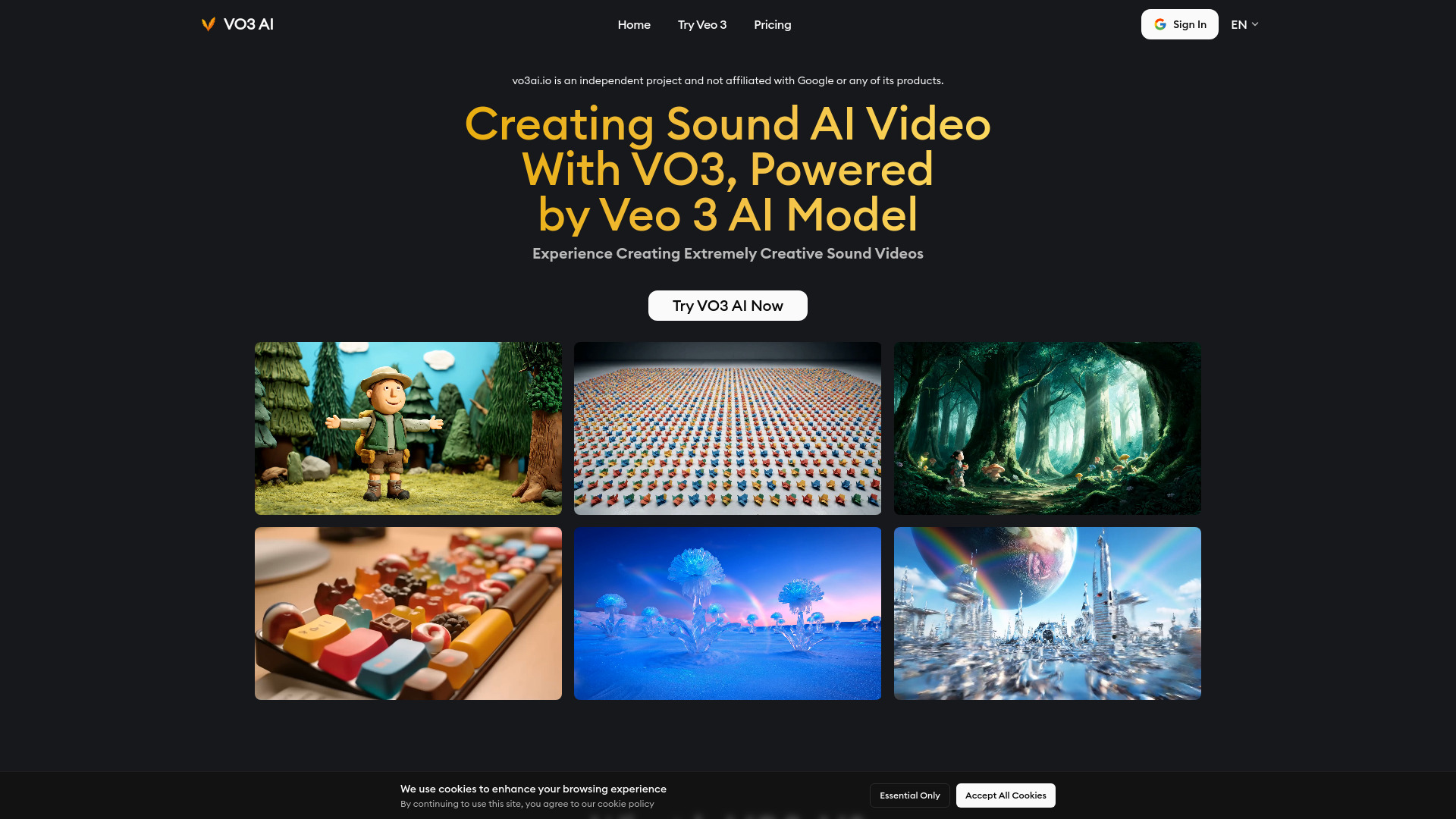
Veo 3 AI Video Generator website preview

What Is Veo 3 AI Video Generator?

Veo 3 AI Video Generator is a Google AI video model that turns creative prompts into cinematic clips with synchronized sound. Rather than producing visuals alone, it can generate dialogue, sound effects, and environmental audio alongside the video. This combined approach helps creators develop scenes in which the imagery and soundtrack work together, from a quiet conversation in a café to an action sequence filled with movement and atmospheric detail.

Designed for visual storytelling, Veo 3 can interpret descriptions of subjects, settings, camera movements, and artistic styles. Depending on the interface and model version, creators may also use image references to guide a scene. For filmmakers, marketers, and digital creators, it offers a practical way to explore ideas and produce short video assets without arranging a full production shoot. Results vary, so reviewing and refining each generation remains an important part of the process.

How to Use Veo 3 AI Video Generator

Start by choosing a Google service that offers access to Veo 3, such as Flow or a supported Vertex AI workflow. Availability, subscription requirements, and generation options may differ by location and account. Once you have access, describe the scene you want to create. Include the main subject, location, action, lighting, and camera perspective. If your chosen interface supports image input, add a reference image to help establish the visual direction.

Next, explain how the scene should sound. You might request footsteps on a wooden floor, distant city traffic, or a character speaking a short line of dialogue. Generate the clip, then check its visual consistency, audio timing, and overall fit with your concept. Adjust the prompt and create another version when needed. For a longer story, develop several related clips and assemble them using the tools available in Flow or a separate video editor.

Clear, focused prompts generally make the process easier to control. Instead of asking for a complicated sequence with many events, describe one coherent moment with a defined beginning and ending. Separating visual direction from audio instructions can also make your creative intent easier to communicate.

Key Features of Veo 3 AI Video Generator

  • Video and Audio Generated Together: Create scenes with accompanying sound effects, background ambience, and speech in a single generation workflow. This can reduce the amount of separate audio sourcing and editing needed during early production.
  • Dialogue with Lip Synchronization: Generate speaking characters whose mouth movements are intended to align with their dialogue. This is useful for conversational scenes and character-driven storytelling, although individual outputs may require additional attempts or editing.
  • Cinematic Visual Direction: Use prompts to specify framing, camera movement, lighting, mood, and visual style. These controls help creators explore everything from documentary-inspired footage to dramatic, film-like compositions.
  • Realistic Motion and Scene Detail: Veo 3 aims to depict convincing movement and interactions between subjects and their surroundings. As with other generative video models, physical accuracy and continuity are not guaranteed and should be checked before publication.
  • Flexible Creative Inputs: Guide production with detailed text descriptions and, where supported, image references. Input capabilities vary across services and model versions, so check the options available in your selected workflow.
  • Creative and Developer Access: Explore filmmaking workflows through Flow or integrate supported Veo capabilities into applications through Vertex AI. These access routes serve different needs, from hands-on experimentation to programmatic content generation.

Together, these capabilities can simplify concept development and short-form production. Generating a scene and its sound in one pass gives teams a more complete starting point for review, while prompt-based iteration makes it easier to compare creative directions before investing in further editing or production.

Why Choose Veo 3 AI Video Generator?

Veo 3 is particularly useful when a creative idea depends on both what viewers see and what they hear. A cinematic street scene, for example, becomes more expressive when footsteps, passing vehicles, and background conversations contribute to the atmosphere. By generating these elements together, the model helps creators evaluate the overall feel of a scene rather than judging a silent visual draft.

Another advantage is the ability to experiment without organizing a location shoot for every concept. Creators can test a different camera angle, change the setting, or rewrite a brief exchange through revised prompts. This flexibility supports storyboarding, campaign planning, and visual exploration, especially when teams need to compare several approaches before choosing a final direction.

Veo 3 does not remove the need for creative judgment or post-production. Generated footage may contain visual inconsistencies, unexpected speech, or imperfect synchronization. However, for projects that benefit from rapid experimentation, its combination of cinematic imagery and integrated audio can make it a valuable addition to an existing production toolkit.

Use Cases and Applications

Social media creators can use Veo 3 to develop short narrative clips, atmospheric visuals, and attention-grabbing scenes for platforms such as TikTok, Instagram Reels, and YouTube Shorts. Marketing teams can explore advertising concepts, lifestyle settings, and promotional storylines before committing to a larger campaign. When a video must show an exact product or make factual claims, teams should carefully verify the generated details.

Filmmakers can use AI-generated clips as moving storyboards to communicate camera choices, scene pacing, and sound design. Instead of relying only on written descriptions, a director can present a short audiovisual interpretation of a proposed scene. Writers and entertainment creators can also experiment with character exchanges and comedic timing, while recognizing that dialogue delivery may need refinement.

Educators and creative professionals may find value in illustrative scenarios, fictional demonstrations, and visual explanations. Designers can explore the mood of an interior or imagine how a setting might appear on camera. These outputs are best treated as creative visualizations rather than reliable technical simulations, particularly when accurate dimensions, scientific behavior, or safety-related information matters.

Product source: Veo 3 AI Video Generator official website. Check the provider for current plans, limits and availability.

FAQ

Veo 3 AI Video Generator questions and answers

Product context and practical checks for evaluating Veo 3 AI Video Generator.

What is Veo 3 AI Video Generator used for?

Instantly turn text into cinematic videos with Veo 3 AI Video Generator, featuring synced audio, sound effects, and realistic lip-sync

How do I get started with Veo 3 AI Video Generator?

Start by choosing a Google service that offers access to Veo 3, such as Flow or a supported Vertex AI workflow. Availability, subscription requirements, and generation options may differ by location and account. Once you have access, describe the scene you want to create. Include the main subject, location, action, lighting, and camera perspective. If your chosen interface supports image input, add a reference image to help establish the visual direction.Next, explain how the scene should sound. You might request footsteps on a wooden floor, distant city traffic, or a character speaking a short line of dialogue. Generate the clip, then check its visual consistency, audio timing, and overall fit with your concept. Adjust the prompt and create another version when needed. For a longer story, develop several related clips and assemble them using the tools available in Flow or a separate video editor.Clear, focused prompts generally make the process easier to control. Instead of asking for a complicated sequence with many events, describe one coherent moment with a defined beginning and ending. Separating visual direction from audio instructions can also make your creative intent easier to communicate.

Which capabilities are described for Veo 3 AI Video Generator?

Video and Audio Generated Together: Create scenes with accompanying sound effects, background ambience, and speech in a single generation workflow. This can reduce the amount of separate audio sourcing and editing needed during early production. Dialogue with Lip Synchronization: Generate speaking characters whose mouth movements are intended to align with their dialogue. This is useful for conversational scenes and character-driven storytelling, although individual outputs may require additional attempts or editing. Cinematic Visual Direction: Use prompts to specify framing, camera movement, lighting, mood, and visual style. These controls help creators explore everything from documentary-inspired footage to dramatic, film-like compositions. Realistic Motion and Scene Detail: Veo 3 aims to depict convincing movement and interactions between subjects and their surroundings. As with other generative video models, physical accuracy and continuity are not guaranteed and should be checked before publication. Flexible Creative Inputs: Guide production with detailed text descriptions and, where supported, image references. Input capabilities vary across services and model versions, so check the options available in your selected workflow. Creative and Developer Access: Explore filmmaking workflows through Flow or integrate supported Veo capabilities into applications through Vertex AI. These access routes serve different needs, from hands-on experimentation to programmatic content generation. Together, these capabilities can simplify concept development and short-form production. Generating a scene and its sound in one pass gives teams a more complete starting point for review, while prompt-based iteration makes it easier to compare creative directions before investing in further editing or production.

What projects can I evaluate Veo 3 AI Video Generator for?

Social media creators can use Veo 3 to develop short narrative clips, atmospheric visuals, and attention-grabbing scenes for platforms such as TikTok, Instagram Reels, and YouTube Shorts. Marketing teams can explore advertising concepts, lifestyle settings, and promotional storylines before committing to a larger campaign. When a video must show an exact product or make factual claims, teams should carefully verify the generated details.Filmmakers can use AI-generated clips as moving storyboards to communicate camera choices, scene pacing, and sound design. Instead of relying only on written descriptions, a director can present a short audiovisual interpretation of a proposed scene. Writers and entertainment creators can also experiment with character exchanges and comedic timing, while recognizing that dialogue delivery may need refinement.Educators and creative professionals may find value in illustrative scenarios, fictional demonstrations, and visual explanations. Designers can explore the mood of an interior or imagine how a setting might appear on camera. These outputs are best treated as creative visualizations rather than reliable technical simulations, particularly when accurate dimensions, scientific behavior, or safety-related information matters.

How does Veo 3 AI Video Generator handle video and audio generated together?

Video and Audio Generated Together: Create scenes with accompanying sound effects, background ambience, and speech in a single generation workflow. This can reduce the amount of separate audio sourcing and editing needed during early production.

How does Veo 3 AI Video Generator handle dialogue with lip synchronization?

Dialogue with Lip Synchronization: Generate speaking characters whose mouth movements are intended to align with their dialogue. This is useful for conversational scenes and character-driven storytelling, although individual outputs may require additional attempts or editing.

What should I compare before choosing a Veo 3 AI Video Generator plan?

Check Veo 3 AI Video Generator’s current pricing page for included usage, renewal terms and any credit charges. Compare the cost of a usable result, including retries, rather than assuming that account registration includes free usage.

What inputs should I prepare for a Veo 3 AI Video Generator trial?

Compare text prompts, reference frames, source footage and audio support. Check duration, aspect ratio and whether the tool lets you keep a subject consistent between shots.

How can I check the quality of a Veo 3 AI Video Generator result?

Watch the entire clip for motion errors, distorted objects, changing identities, lip-sync problems and abrupt transitions. Inspect the downloaded file as well as the preview.

Where is the official Veo 3 AI Video Generator website?

The website linked from this profile is https://vo3ai.io/. Use the provider’s own documentation, account area and support channels to confirm current product details.

Visit Veo 3 AI Video Generator