Writing Assistants

Productivity Page

Productivity Page: A powerful, user-friendly planner that syncs across all your IOS devices for effortless organization and productivity.

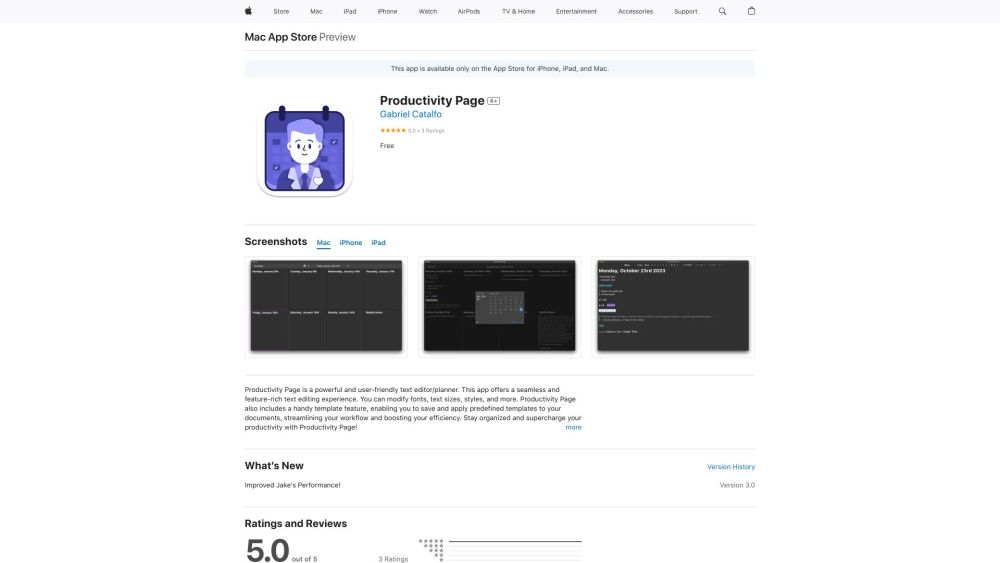
Productivity Page website preview

Productivity Page Website screenshot

What is Productivity Page?

Productivity Page is a robust and intuitive planner designed to sync flawlessly across all your iOS devices.

How to use Productivity Page?

Begin by downloading the Productivity Page app on your iPhone, iPad, iPod touch, or Mac. Once installed, create an account to start organizing your tasks, managing your calendar, and tracking your projects efficiently.

Core Features of Productivity Page

Effortless syncing across devices

Advanced text editing and formatting tools

Pre-designed templates for quick document creation

Built-in productivity assistant (Jake)

Use Cases for Productivity Page

Task organization and planning

Event management on your calendar

Enhancing workflow with templates

Utilizing the productivity assistant for support

Product source: Productivity Page official website. Check the provider for current plans, limits and availability.

FAQ

Productivity Page questions and answers

Product context and practical checks for evaluating Productivity Page.

What is Productivity Page used for?

Productivity Page: A powerful, user-friendly planner that syncs across all your IOS devices for effortless organization and productivity.

How do I get started with Productivity Page?

Begin by downloading the Productivity Page app on your iPhone, iPad, iPod touch, or Mac. Once installed, create an account to start organizing your tasks, managing your calendar, and tracking your projects efficiently.

Which capabilities are described for Productivity Page?

Effortless syncing across devicesAdvanced text editing and formatting toolsPre-designed templates for quick document creationBuilt-in productivity assistant (Jake)

What projects can I evaluate Productivity Page for?

Task organization and planningEvent management on your calendarEnhancing workflow with templatesUtilizing the productivity assistant for support

What should I compare before choosing a Productivity Page plan?

Check Productivity Page’s current pricing page for included usage, renewal terms and any credit charges. Compare the cost of a usable result, including retries, rather than assuming that account registration includes free usage.

What inputs should I prepare for a Productivity Page trial?

Identify the files, text or account connections your task needs. Confirm that the product accepts those inputs and offers controls for reviewing its work.

How can I check the quality of a Productivity Page result?

Test one representative task and inspect the result for accuracy and completeness. Record where manual corrections or extra tools are needed.

Which export options should I check in Productivity Page?

Check export formats, integrations and whether you can keep using your work outside the service. Test a real export before committing to a longer plan.

What is a practical way to test Productivity Page against alternatives?

Choose one task with a clear success condition. Keep the input consistent, record the time spent reviewing and compare the complete workflow cost.

Where is the official Productivity Page website?

The website linked from this profile is https://apps.apple.com/us/app/productivity-page/id6470702399. Use the provider’s own documentation, account area and support channels to confirm current product details.

Visit Productivity Page