What Is FACY AI: Face Swap, Upscale, Background Removal & Video AI?
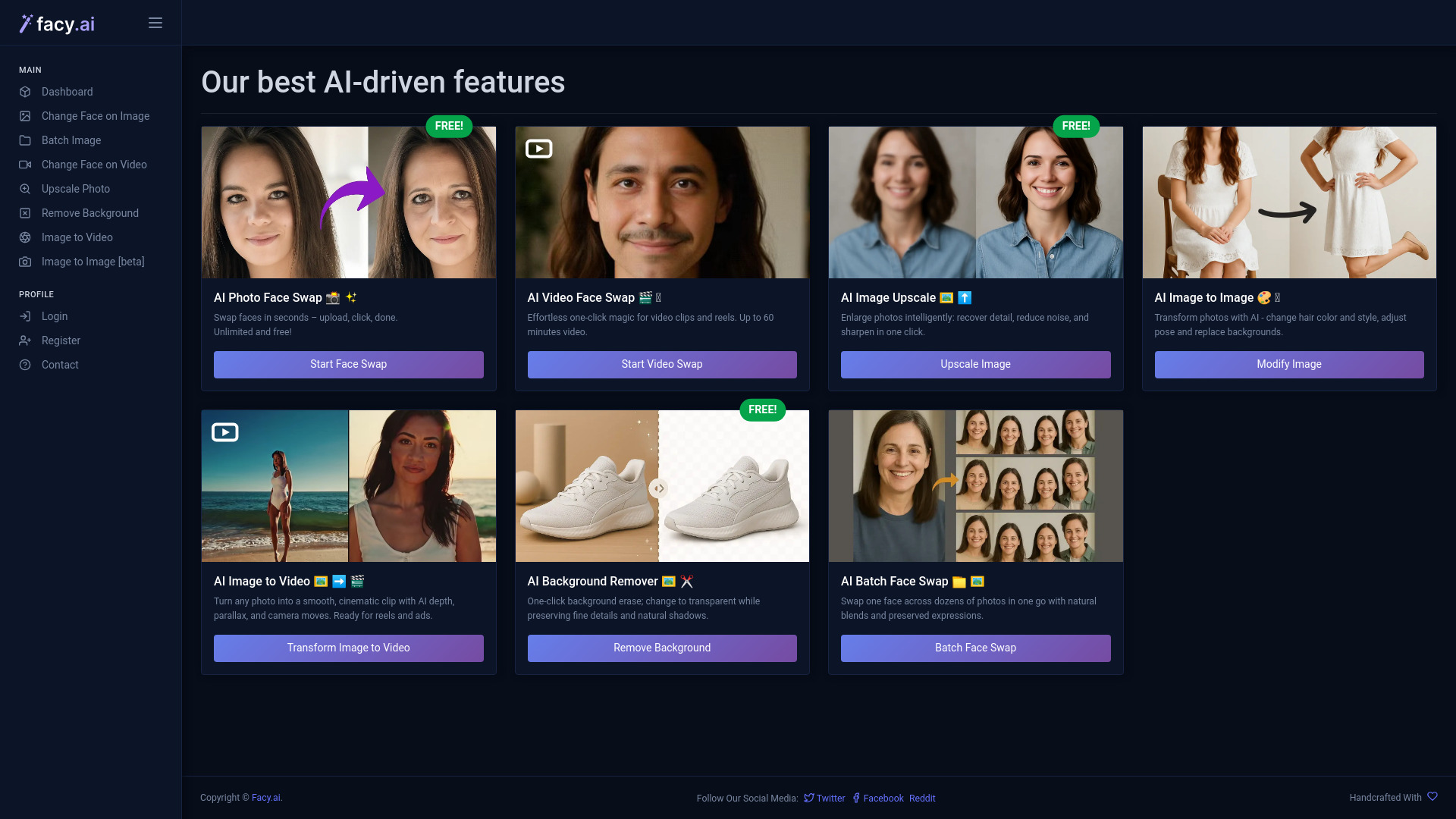
FACY AI is an all-in-one artificial intelligence platform for creating, enhancing, and transforming visual content. Its toolkit brings together realistic face swapping for images and videos, AI-powered image upscaling, automatic background removal, image-to-video generation, and image transformation features in one convenient workspace. Instead of relying on multiple editing applications or spending hours making detailed adjustments, users can upload their media, choose an AI function, and generate an improved result through a simple online workflow.
From entertaining social media edits and creative portraits to product visuals and promotional videos, FACY AI helps users produce polished content with minimal technical experience. The platform is designed for anyone who wants to experiment with visual effects, restore older images, create dynamic clips, or prepare media for online publishing.
How Does FACY AI Work?
Using FACY AI begins with uploading a compatible photo or video and selecting the tool that matches your project. Depending on the feature, you may provide one image for enhancement, a subject image for background removal, or separate source and destination images for a face swap. The AI then analyzes visual elements such as facial structure, edges, lighting, colors, and movement before applying the requested transformation.
For a photo face swap, upload the image that contains the face to be replaced and the image containing the replacement face. FACY AI processes both files and blends the selected facial features into the target image while attempting to preserve the original pose, expression, and surrounding details. Video face swapping follows a similar process across multiple frames, helping the replacement remain consistent as the subject moves.
Users can also combine tools to create more advanced results. For example, an image can be upscaled after its background has been removed, or a finished portrait can be converted into a short video. This flexible workflow makes FACY AI suitable for quick one-off edits as well as projects involving multiple assets.
Main Features of FACY AI
- AI Photo Face Swap: Replace a face in a photograph with another face while preserving important visual elements such as positioning, expression, and overall composition. This feature is useful for creative portraits, humorous edits, themed artwork, and social media content.
- AI Video Face Swap: Apply face replacement effects to video clips while the subject moves through different frames. The tool is suited to short-form videos, entertainment projects, visual experiments, and personalized content.
- AI Image Upscaler: Increase the apparent resolution of smaller or less detailed images. FACY AI can help sharpen visual details and improve the presentation of photos intended for websites, social posts, digital projects, or printing.
- AI Background Removal: Separate a person, object, or other foreground subject from its original background. The resulting cutout can be placed over a new scene, used in product graphics, or exported with a transparent background when supported.
- Image-to-Video Generation: Turn a still image into a moving visual with AI-generated motion, transitions, or camera-style effects. This provides an easy way to create short clips from portraits, artwork, travel photos, and promotional images.
- Batch Face Swapping: Process multiple images in a more efficient sequence when a project requires repeated face replacement. This can save time for creators managing galleries, themed collections, or large sets of visual assets.
- AI Image Transformation: Modify selected visual elements or produce a new variation based on an existing image. Depending on the selected workflow, users may explore different styles, appearances, backgrounds, and creative compositions.
Why Use FACY AI for Visual Editing?
FACY AI brings several frequently requested editing functions together in a single browser-based platform. A user who needs to replace a face, improve image quality, remove a background, and create a short video can complete these tasks within one connected workflow. This reduces the need to switch between separate applications and makes experimentation easier for beginners.
The platform is also useful for creators who want fast results without learning complex editing software. AI handles many of the technical steps, including identifying faces, tracing subject boundaries, analyzing image details, and applying motion to static visuals. Users can focus on choosing suitable source material and refining the creative direction rather than manually performing every edit.
FACY AI can support both casual projects and more structured content production. Social media users may need a quick face swap or animated portrait, while businesses may require cleaner product images, enlarged graphics, or promotional video assets. The variety of available tools allows the same platform to serve different goals, formats, and publishing channels.
Practical Uses for FACY AI
Social media creators can use FACY AI to develop engaging posts, short videos, profile images, memes, and themed visual campaigns. Photo face swapping can add a playful element to portraits, while video face swapping can help produce attention-grabbing reels and short-form entertainment. The image-to-video tool gives static photos additional movement, making them more suitable for platforms where video content receives greater visibility.
Businesses and online sellers can use background removal to create cleaner product images for storefronts, catalogs, advertisements, and marketplace listings. Upscaling can help prepare older or smaller product photos for larger displays, while image transformation tools can support the creation of alternate visual concepts without arranging a new photo session for every variation.
Photographers, designers, and digital artists may use the platform during the concept development stage. Backgrounds can be changed, portraits can be enhanced, and still compositions can be turned into motion-based previews. Batch processing is particularly helpful when a project includes many related images that need a similar face swap or repeated editing treatment.
Individuals can also use FACY AI for personal creative projects. It may be suitable for restoring family photos, creating themed invitations, producing visual gifts, animating memorable images, or testing different artistic ideas. The straightforward upload and processing model makes these experiments accessible even when the user has little previous editing experience.
Tips for Getting Better Results with FACY AI
The quality of an AI edit often depends on the quality of the uploaded material. For face swapping, choose images where the faces are clearly visible and have reasonably similar angles and lighting. Front-facing or naturally aligned portraits usually give the system more useful information than heavily obstructed or extremely dark images.
For background removal, use a photo where the main subject is visually distinct from the surrounding scene. Clear edges and sufficient contrast can make it easier for the AI to identify hair, clothing, products, and other fine details. When upscaling an image, begin with the highest-quality original available because enhancement tools can improve detail presentation but cannot fully recreate information that was never captured.
Video projects benefit from stable footage and consistent visibility of the subject. Shorter clips may process more quickly and can be easier to review before creating a longer version. After processing, inspect the output for facial alignment, edge quality, motion consistency, and any areas that may require a different source file or another editing approach.