AI Email Assistant

Billie on macOS

Billie on macOS: Streamline your invoice process with this powerful tool. Manage invoices effortlessly and boost productivity.

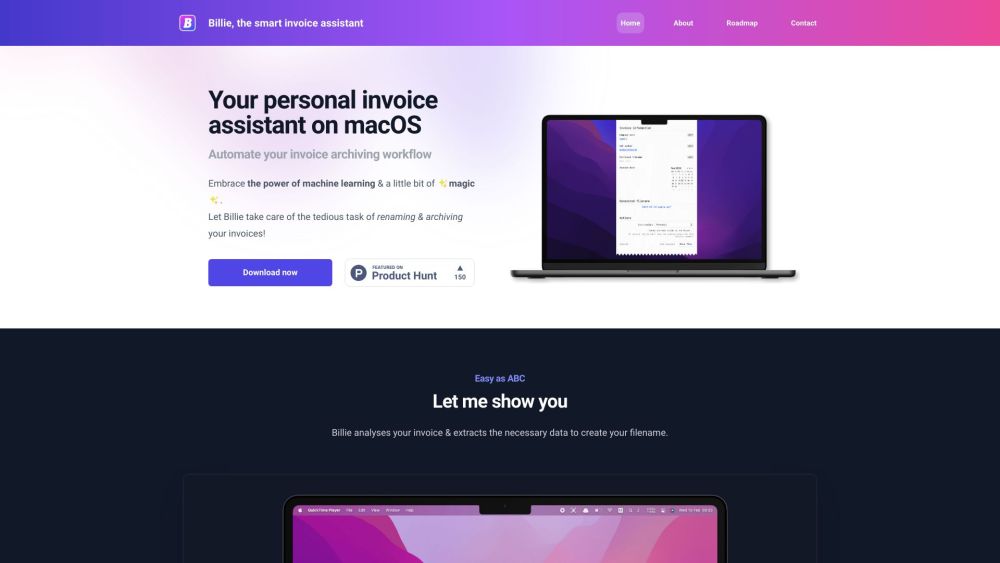
Billie on macOS website preview

Billie on macOS Website screenshot

Discover Billie on macOS

Billie on macOS is an innovative tool designed to simplify invoice management, making your billing process more efficient.

Getting Started with Billie on macOS

To begin using Billie on macOS, download and install the app on your macOS device. After installation, launch the app and follow the setup instructions to create your account and import your existing invoices. With Billie, you can easily create, modify, and send invoices, monitor payment statuses, and produce comprehensive reports.

Key Features of Billie on macOS

Billie on macOS offers features such as invoice creation and modification, payment tracking, detailed reporting, and customizable invoice options.

Ideal Users for Billie on macOS

Billie on macOS is perfect for freelancers, small businesses, and agencies that require a robust invoicing solution. It is particularly advantageous for users who prefer a dedicated invoicing app on their macOS devices.

Product source: Billie on macOS official website. Check the provider for current plans, limits and availability.

FAQ

Billie on macOS questions and answers

Product context and practical checks for evaluating Billie on macOS.

What is Billie on macOS used for?

Billie on macOS: Streamline your invoice process with this powerful tool. Manage invoices effortlessly and boost productivity.

How do I get started with Billie on macOS?

To begin using Billie on macOS, download and install the app on your macOS device. After installation, launch the app and follow the setup instructions to create your account and import your existing invoices. With Billie, you can easily create, modify, and send invoices, monitor payment statuses, and produce comprehensive reports.

Which capabilities are described for Billie on macOS?

Billie on macOS offers features such as invoice creation and modification, payment tracking, detailed reporting, and customizable invoice options.

What should I compare before choosing a Billie on macOS plan?

Check Billie on macOS’s current pricing page for included usage, renewal terms and any credit charges. Compare the cost of a usable result, including retries, rather than assuming that account registration includes free usage.

What inputs should I prepare for a Billie on macOS trial?

Compare recording length, file types, language support and speaker handling. For voice generation, check pronunciation controls and permission to use any reference voice.

How can I check the quality of a Billie on macOS result?

Listen for mispronounced names, unnatural pauses, clipped words and noise. For transcripts, compare the text with the recording and correct speaker labels.

Which export options should I check in Billie on macOS?

Check audio format, sample rate, separate tracks, captions and timestamp exports. Confirm that the result works in your editing or accessibility workflow.

What is a practical way to test Billie on macOS against alternatives?

Use a short recording with names, numbers and more than one speaker, or a script with difficult pronunciation. Review the exported audio or transcript in full.

What should I review before uploading material to Billie on macOS?

Read the provider’s rules on access, retention, deletion and use of uploaded material. Start with a non-confidential sample that you have permission to use.

Where is the official Billie on macOS website?

The website linked from this profile is https://getbillie.app. Use the provider’s own documentation, account area and support channels to confirm current product details.

Visit Billie on macOS