What Is Wan AI Video Generator?
Wan AI Video Generator turns written prompts and still images into cinematic video clips. It uses Wan 2.2, a video generation model developed by Alibaba’s Tongyi Lab, to produce scenes with directed camera movement, animated subjects, and effects such as rippling water or fabric moving in the wind. The tool is featured on aitop-tools.com, and the workflow on ArtAny AI lets you start with a scene description or upload an image to animate. Creators can use it to preview a shot, build a product teaser, or add motion to an illustration. The model also supports generating visible Chinese and English text within a scene, such as lettering on a storefront or a sign in the background.
How to Create a Video With Wan AI Video Generator
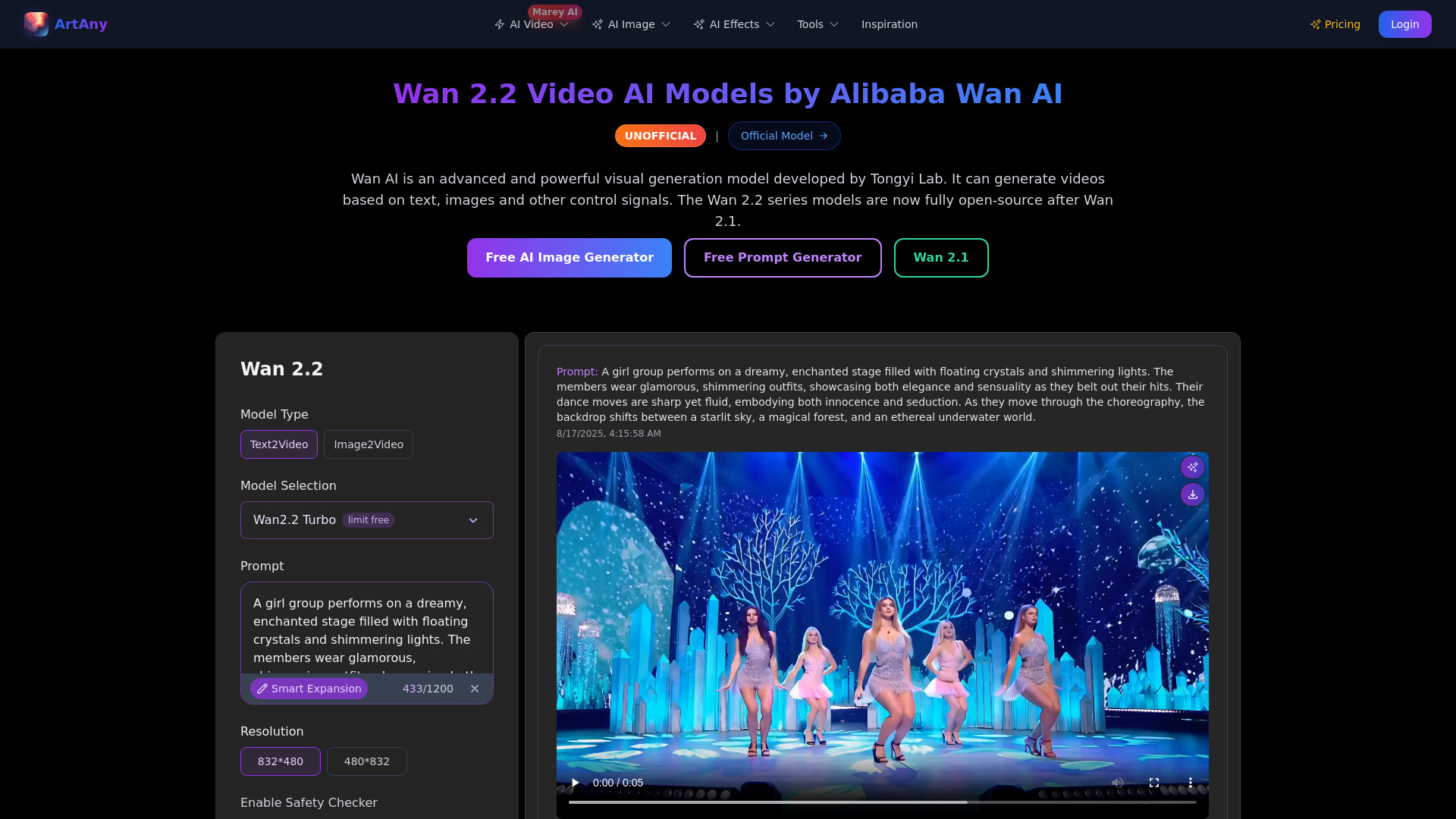
Open ArtAny AI, select Wan 2.2, and choose Text-to-Video or Image-to-Video. For Text-to-Video, describe the subject, setting, and action you want to see. For Image-to-Video, upload a photo, illustration, or product render and describe what should move. Specify the framing, camera direction, and lighting if they matter to the shot. Use the available resolution, aspect ratio, and duration controls to fit the clip to your project, whether it will appear in a vertical social post or a widescreen presentation.
Write each prompt like a short shot description. For a product clip, you might ask for a slow push toward a glass bottle on a dark counter as a soft reflection passes across the label. For an outdoor scene, describe how a breeze affects nearby leaves and what the camera reveals as it moves. Review the first clip for details such as pacing, object motion, and framing, then adjust the part of the prompt that controls the result you want to change. Where the platform supports reference-based editing, an image or video can help guide the next version.
Key Features of Wan AI Video Generator
- Text-to-Video Generation turns a written scene into a moving shot. Prompts can describe a subject’s action, the order of events, the camera angle, and how the framing changes as the scene unfolds.
- Motion and Physical Effects help depict interactions such as water splashing, fabric folding, or objects making contact. Describe where the movement starts and how surrounding objects respond to give the model clearer direction.
- Cinematic Visual Direction lets you describe qualities such as backlighting, shallow depth of field, or a gradual camera reveal. These choices help define the look and pace of the clip from the first frame.
- Chinese and English Text in Scenes supports shots that include details such as shop signs, printed labels, or stylized lettering. Review the generated frames when a word or phrase needs to be spelled exactly.
- Multiple Creation Modes cover both text-to-video and image-to-video projects. If the platform also offers text-to-image generation, you can make a still concept first and use it as the starting frame for a separate animation.
Why Use Wan AI Video Generator?
Wan AI Video Generator is useful when you want to see how an idea plays on screen before committing time to filming or animation. A marketing team can try several openings for a campaign, while a filmmaker can test whether a camera move reveals a subject at the right moment. Starting with an existing visual is especially useful when the composition is already set and the main creative decision is how to introduce motion.
The prompt-based workflow gives individuals and teams a way to share rough clips alongside scripts, campaign concepts, or storyboards. Reviewers can respond to a specific choice, such as how quickly a product comes into view or whether the light suits the scene. Those notes can then guide the next prompt. The same workflow can support assets intended for publication, with time set aside to inspect the output and make any needed edits.
Use Cases for Text-to-Video and Image-to-Video
Social media teams can turn a campaign brief into a short teaser or animate an existing graphic for a launch. E-commerce teams can start with a product photo and add a controlled camera move, shifting light, or background motion for a showcase. Educators can illustrate a process that unfolds over time or create a stylized historical scene for a lesson. In each case, the prompt can focus on the specific action or detail viewers should notice.
Film and design teams can use generated footage to preview storyboard panels, develop visual effects concepts, or test the pacing of a sequence. Sports creators can illustrate a play for an explainer, and training teams can create short scenarios that show a task in context. Artists can animate details within an illustration, such as drifting clouds or reflections on water. The format also works for previews of virtual tours, where a slow camera move can help establish the layout of a space.