Summarizer

Transcribe YouTube Video

Transcribe YouTube Video - Chrome Extension: Instantly transcribe and summarize videos with AI for content extraction and quick insights.

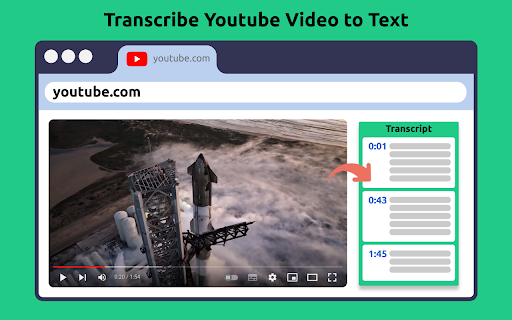
Transcribe YouTube Video website preview

Transcribe YouTube Video - Chrome Extension Website screenshot

What is the Transcribe YouTube Video AI Chrome Extension?

The Transcribe YouTube Video AI Chrome Extension is a powerful tool that helps users effortlessly transcribe and summarize YouTube videos using advanced AI technology. It streamlines the process of extracting text from videos and provides concise summaries.

How to Use the Transcribe YouTube Video AI Chrome Extension?

To get started, simply install the extension from the Chrome Web Store. Once installed, open any YouTube video, and the extension will allow you to access the full video transcript and a summarized version generated by AI. You can also scroll through the transcript based on the video’s timeline, download it, or copy it to your clipboard.

Key Features of the Transcribe YouTube Video AI Chrome Extension

AI-Powered Video Summarization

Supports Transcription in Multiple Languages

Timeline-Based Navigation

Downloadable Transcripts

Easily Copy Transcripts to Clipboard

Use Cases for the Transcribe YouTube Video AI Chrome Extension

Helping Non-Native Speakers Improve Their Language Skills

Enabling Students to Learn More Effectively

Supporting Teachers in Developing New Teaching Strategies

Saving Time for Professionals Conducting Research

Assisting Researchers with Faster Information Gathering

Boosting Content Creators’ Engagement with Their Audience

Product source: Transcribe YouTube Video official website. Check the provider for current plans, limits and availability.

FAQ

Transcribe YouTube Video questions and answers

Product context and practical checks for evaluating Transcribe YouTube Video.

What is Transcribe YouTube Video used for?

Transcribe YouTube Video - Chrome Extension: Instantly transcribe and summarize videos with AI for content extraction and quick insights.

How do I get started with Transcribe YouTube Video?

To get started, simply install the extension from the Chrome Web Store. Once installed, open any YouTube video, and the extension will allow you to access the full video transcript and a summarized version generated by AI. You can also scroll through the transcript based on the video’s timeline, download it, or copy it to your clipboard.

Which capabilities are described for Transcribe YouTube Video?

AI-Powered Video SummarizationSupports Transcription in Multiple LanguagesTimeline-Based NavigationDownloadable TranscriptsEasily Copy Transcripts to Clipboard

What projects can I evaluate Transcribe YouTube Video for?

Helping Non-Native Speakers Improve Their Language SkillsEnabling Students to Learn More EffectivelySupporting Teachers in Developing New Teaching StrategiesSaving Time for Professionals Conducting ResearchAssisting Researchers with Faster Information GatheringBoosting Content Creators’ Engagement with Their Audience

What should I compare before choosing a Transcribe YouTube Video plan?

Check Transcribe YouTube Video’s current pricing page for included usage, renewal terms and any credit charges. Compare the cost of a usable result, including retries, rather than assuming that account registration includes free usage.

What inputs should I prepare for a Transcribe YouTube Video trial?

Compare text prompts, reference frames, source footage and audio support. Check duration, aspect ratio and whether the tool lets you keep a subject consistent between shots.

How can I check the quality of a Transcribe YouTube Video result?

Watch the entire clip for motion errors, distorted objects, changing identities, lip-sync problems and abrupt transitions. Inspect the downloaded file as well as the preview.

Which export options should I check in Transcribe YouTube Video?

Check export resolution, frame rate, aspect ratio, audio tracks and watermark rules. A good preview is not a substitute for an export that fits your publishing channel.

What is a practical way to test Transcribe YouTube Video against alternatives?

Use a short shot with one subject and one camera movement. Keep the prompt and duration constant, then compare usable seconds and the number of regenerations.

Where is the official Transcribe YouTube Video website?

The website linked from this profile is https://chromewebstore.google.com/detail/transcribe-youtube-video/dlcncgfmpjblcgppbgjccpaopneelkoi. Use the provider’s own documentation, account area and support channels to confirm current product details.

Visit Transcribe YouTube Video