Captions or Subtitle

TinyStudio

TinyStudio: Free Mac app for fast, one-click subtitle generation on M1/M2 chips. No technical skills needed—effortlessly add subtitles to your videos and audio.

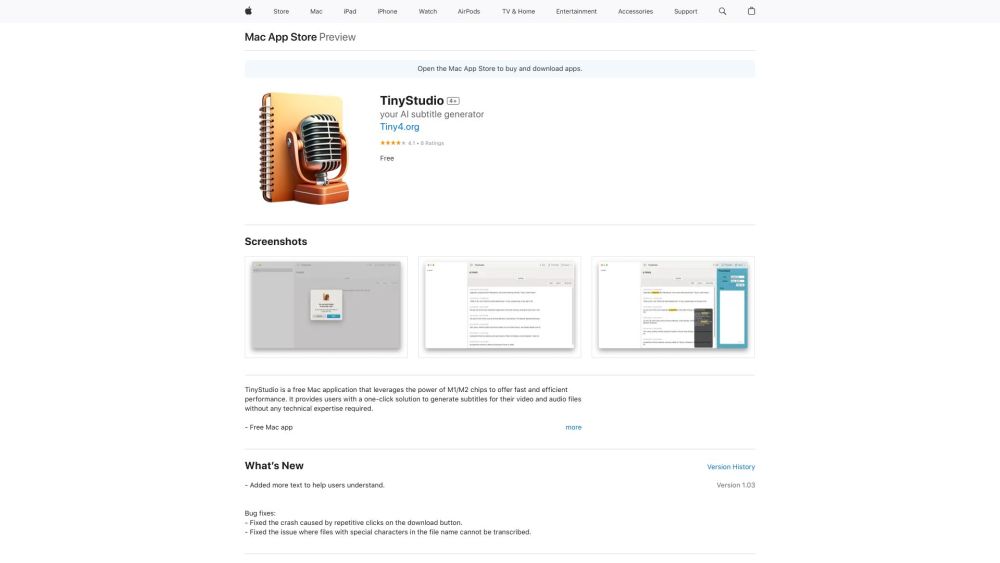
TinyStudio website preview
html

TinyStudio Website screenshot

Introducing TinyStudio

TinyStudio is a cutting-edge application for Mac, designed to exploit the advanced capabilities of M1 and M2 chips, delivering unmatched speed and efficiency. It offers a straightforward, one-click solution for generating subtitles for both video and audio files, making it accessible to users without any technical background.

Getting Started with TinyStudio

TinyStudio is incredibly user-friendly. Begin by downloading and installing the app on your Mac. After installation, launch the app and select the video or audio file for which you need subtitles. Click the 'Generate Subtitles' button, and TinyStudio will swiftly produce accurate subtitles for your media file.

Key Features of TinyStudio

Optimized for M1/M2 chips to ensure fast and efficient operation

Simple one-click subtitle generation

Compatible with both video and audio files

Provides precise and dependable subtitles

User-friendly, no technical skills needed

Who Can Benefit from TinyStudio?

Video content creators

Podcasters

Language learners

Transcription services

Product source: TinyStudio official website. Check the provider for current plans, limits and availability.

FAQ

TinyStudio questions and answers

Product context and practical checks for evaluating TinyStudio.

What is TinyStudio used for?

TinyStudio: Free Mac app for fast, one-click subtitle generation on M1/M2 chips. No technical skills needed—effortlessly add subtitles to your videos and audio.

How do I get started with TinyStudio?

TinyStudio is incredibly user-friendly. Begin by downloading and installing the app on your Mac. After installation, launch the app and select the video or audio file for which you need subtitles. Click the 'Generate Subtitles' button, and TinyStudio will swiftly produce accurate subtitles for your media file.

Which capabilities are described for TinyStudio?

Optimized for M1/M2 chips to ensure fast and efficient operationSimple one-click subtitle generationCompatible with both video and audio filesProvides precise and dependable subtitlesUser-friendly, no technical skills needed

What should I compare before choosing a TinyStudio plan?

Check TinyStudio’s current pricing page for included usage, renewal terms and any credit charges. Compare the cost of a usable result, including retries, rather than assuming that account registration includes free usage.

What inputs should I prepare for a TinyStudio trial?

Compare text prompts, reference frames, source footage and audio support. Check duration, aspect ratio and whether the tool lets you keep a subject consistent between shots.

How can I check the quality of a TinyStudio result?

Watch the entire clip for motion errors, distorted objects, changing identities, lip-sync problems and abrupt transitions. Inspect the downloaded file as well as the preview.

Which export options should I check in TinyStudio?

Check export resolution, frame rate, aspect ratio, audio tracks and watermark rules. A good preview is not a substitute for an export that fits your publishing channel.

What is a practical way to test TinyStudio against alternatives?

Use a short shot with one subject and one camera movement. Keep the prompt and duration constant, then compare usable seconds and the number of regenerations.

What should I review before uploading material to TinyStudio?

Read the provider’s rules on access, retention, deletion and use of uploaded material. Start with a non-confidential sample that you have permission to use.

Where is the official TinyStudio website?

The website linked from this profile is https://apps.apple.com/us/app/tinystudio/id6448954288. Use the provider’s own documentation, account area and support channels to confirm current product details.

Visit TinyStudio