AI Image Enhancer

PixelSense

PixelSense: Edit RAW photos on iOS, fine-tune adjustments, and elevate your creativity with AI enhancements. Unleash your photo editing potential!

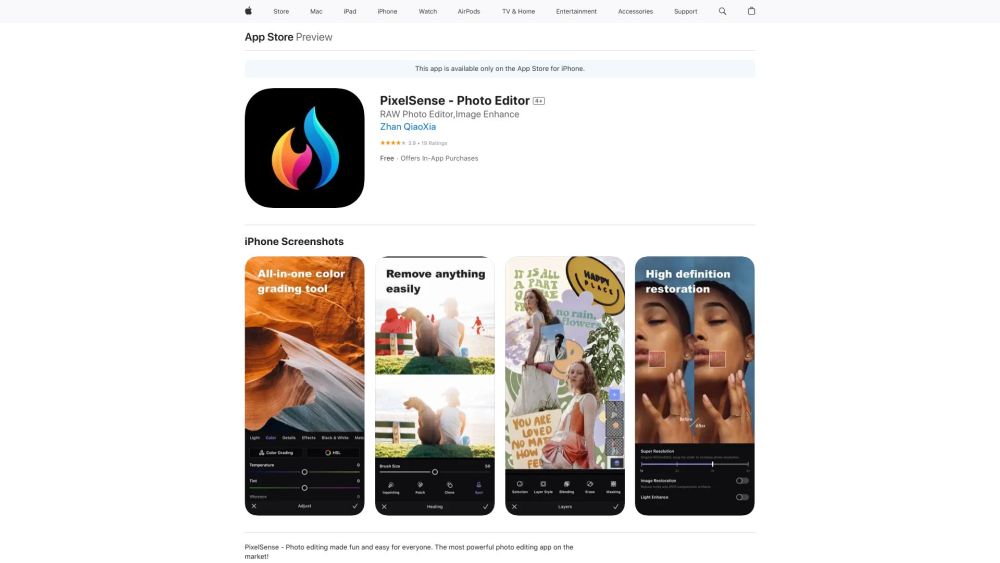
PixelSense website preview

PixelSense Website screenshot

Discover PixelSense

PixelSense is an advanced photo editing app for iOS that empowers users to work with RAW images, apply intricate adjustments, and enhance photos with cutting-edge AI technology.

Getting Started with PixelSense

To start using PixelSense, download the app from the App Store, launch it on your iOS device, and import your photos. The app's user-friendly interface allows you to easily make various edits and enhancements to your images.

Key Features of PixelSense

RAW Image Editing

Detailed Adjustments

AI-Powered Enhancements

Accurate Cutouts

Flexible Layer Adjustments

Who Can Benefit from PixelSense?

Professional Photographers for RAW Image Editing on iOS

Amateur Photographers Seeking Creative Control

Artists and Designers Crafting AI-Enhanced Visuals

Product source: PixelSense official website. Check the provider for current plans, limits and availability.

FAQ

PixelSense questions and answers

Product context and practical checks for evaluating PixelSense.

What is PixelSense used for?

PixelSense: Edit RAW photos on iOS, fine-tune adjustments, and elevate your creativity with AI enhancements. Unleash your photo editing potential!

How do I get started with PixelSense?

To start using PixelSense, download the app from the App Store, launch it on your iOS device, and import your photos. The app's user-friendly interface allows you to easily make various edits and enhancements to your images.

Which capabilities are described for PixelSense?

RAW Image EditingDetailed AdjustmentsAI-Powered EnhancementsAccurate CutoutsFlexible Layer Adjustments

What should I compare before choosing a PixelSense plan?

Check PixelSense’s current pricing page for included usage, renewal terms and any credit charges. Compare the cost of a usable result, including retries, rather than assuming that account registration includes free usage.

What inputs should I prepare for a PixelSense trial?

Look for text prompts, image references, masks or sketches as appropriate. Compare composition control, supported upload types and the ability to revise a selected area.

How can I check the quality of a PixelSense result?

Inspect text, hands, edges, reflections and repeated objects at full size. Check that important product or brand details survive editing.

Which export options should I check in PixelSense?

Compare pixel dimensions, transparency, file formats and any enlargement options. Confirm that the downloaded result works in your design or publishing software.

What is a practical way to test PixelSense against alternatives?

Prepare a brief with a subject, composition, lighting and required output size. Test a first generation and a targeted revision to see how much control you retain.

What should I review before uploading material to PixelSense?

Read the provider’s rules on access, retention, deletion and use of uploaded material. Start with a non-confidential sample that you have permission to use.

Where is the official PixelSense website?

The website linked from this profile is https://apps.apple.com/us/app/pixelsense-photo-editor/id1599700082. Use the provider’s own documentation, account area and support channels to confirm current product details.

Visit PixelSense