AI Builder

ISearch

Discover photos by scene, object, color, or emotion with ISearch: the ultimate photo search engine for all your visual needs.

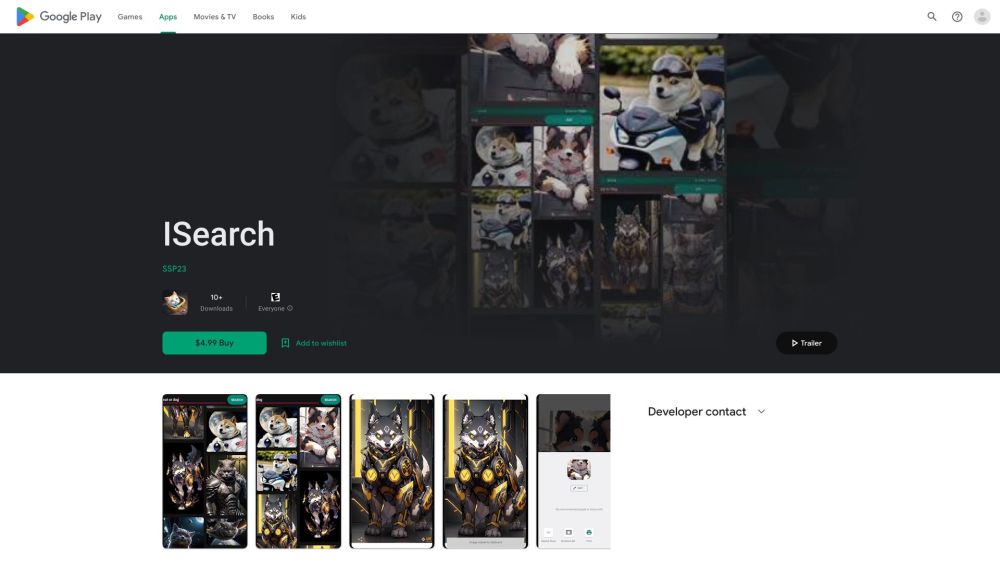
ISearch website preview

ISearch Website screenshot

What is ISearch?

ISearch is an innovative photo search engine designed to help users find images based on specific scenes, objects, colors, or emotions.

How to use ISearch?

To use ISearch, simply enter keywords related to a scene, object, color, or emotion into the search bar. The engine will quickly provide images that match your input criteria.

ISearch's Core Features

Scene-based search

Object-based search

Color-based search

Emotion-based search

ISearch's Use Cases

Finding photos for blog posts

Creating visual presentations

Designing websites

Enhancing marketing materials

Product source: ISearch official website. Check the provider for current plans, limits and availability.

FAQ

ISearch questions and answers

Product context and practical checks for evaluating ISearch.

What is ISearch used for?

Discover photos by scene, object, color, or emotion with ISearch: the ultimate photo search engine for all your visual needs.

How do I get started with ISearch?

To use ISearch, simply enter keywords related to a scene, object, color, or emotion into the search bar. The engine will quickly provide images that match your input criteria.

Which capabilities are described for ISearch?

Scene-based searchObject-based searchColor-based searchEmotion-based search

What projects can I evaluate ISearch for?

Finding photos for blog postsCreating visual presentationsDesigning websitesEnhancing marketing materials

What should I compare before choosing a ISearch plan?

Check ISearch’s current pricing page for included usage, renewal terms and any credit charges. Compare the cost of a usable result, including retries, rather than assuming that account registration includes free usage.

What inputs should I prepare for a ISearch trial?

Compare text prompts, reference frames, source footage and audio support. Check duration, aspect ratio and whether the tool lets you keep a subject consistent between shots.

How can I check the quality of a ISearch result?

Watch the entire clip for motion errors, distorted objects, changing identities, lip-sync problems and abrupt transitions. Inspect the downloaded file as well as the preview.

Which export options should I check in ISearch?

Check export resolution, frame rate, aspect ratio, audio tracks and watermark rules. A good preview is not a substitute for an export that fits your publishing channel.

What is a practical way to test ISearch against alternatives?

Use a short shot with one subject and one camera movement. Keep the prompt and duration constant, then compare usable seconds and the number of regenerations.

Where is the official ISearch website?

The website linked from this profile is https://play.google.com/store/apps/details?id=com.image.isearch&utm_source=toolify. Use the provider’s own documentation, account area and support channels to confirm current product details.

Visit ISearch